
agent.write permission.
Supported providers
The model list is fetched from the provider, so new models appear without an OASM update.
The custom provider works with any server that implements the OpenAI chat completions API, such as a self-hosted inference server or a gateway in front of your own models. OASM calls
<API Endpoint>/models to list its models and sends chat requests to the same base URL.
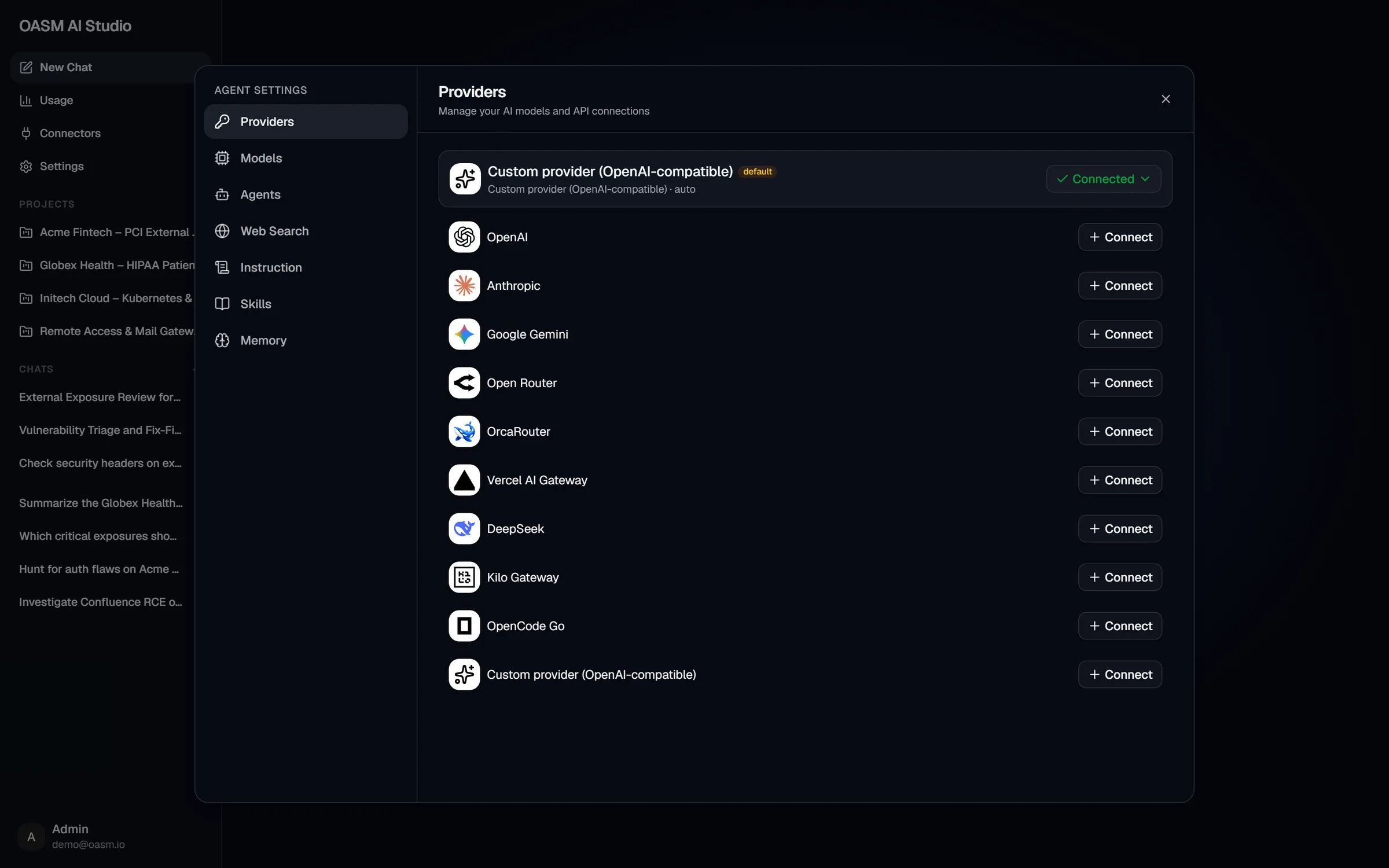
Settings → Providers: one connected provider marked as the default, and every provider ready to connect
Connect a provider
1
Open the provider settings
In AI Studio, click Settings in the sidebar. The settings dialog opens on Providers. You can also click Connect on the Connect an AI Provider screen, Connect LLM in the composer, or the gear button next to the model picker.
2
Pick a provider
Click Connect next to the provider. The Connect <provider> dialog opens.
3
Fill in the form
- Name: a friendly name to identify this connection later. It starts as the provider’s name; change it to something like “My Work Key” if you connect the same provider more than once.
- API Endpoint: only for Custom provider (OpenAI-compatible). The base URL of the provider’s API, for example
https://api.myprovider.com/v1. - API Key: required (marked with
*) for every provider except the custom one, where the form marks it as optional.
4
Click Connect
OASM checks the key by fetching the provider’s model list. If that works, you see Provider connected successfully and the connection appears at the top of the list with a Connected button. If it fails, the dialog stays open with the error; see Troubleshooting.
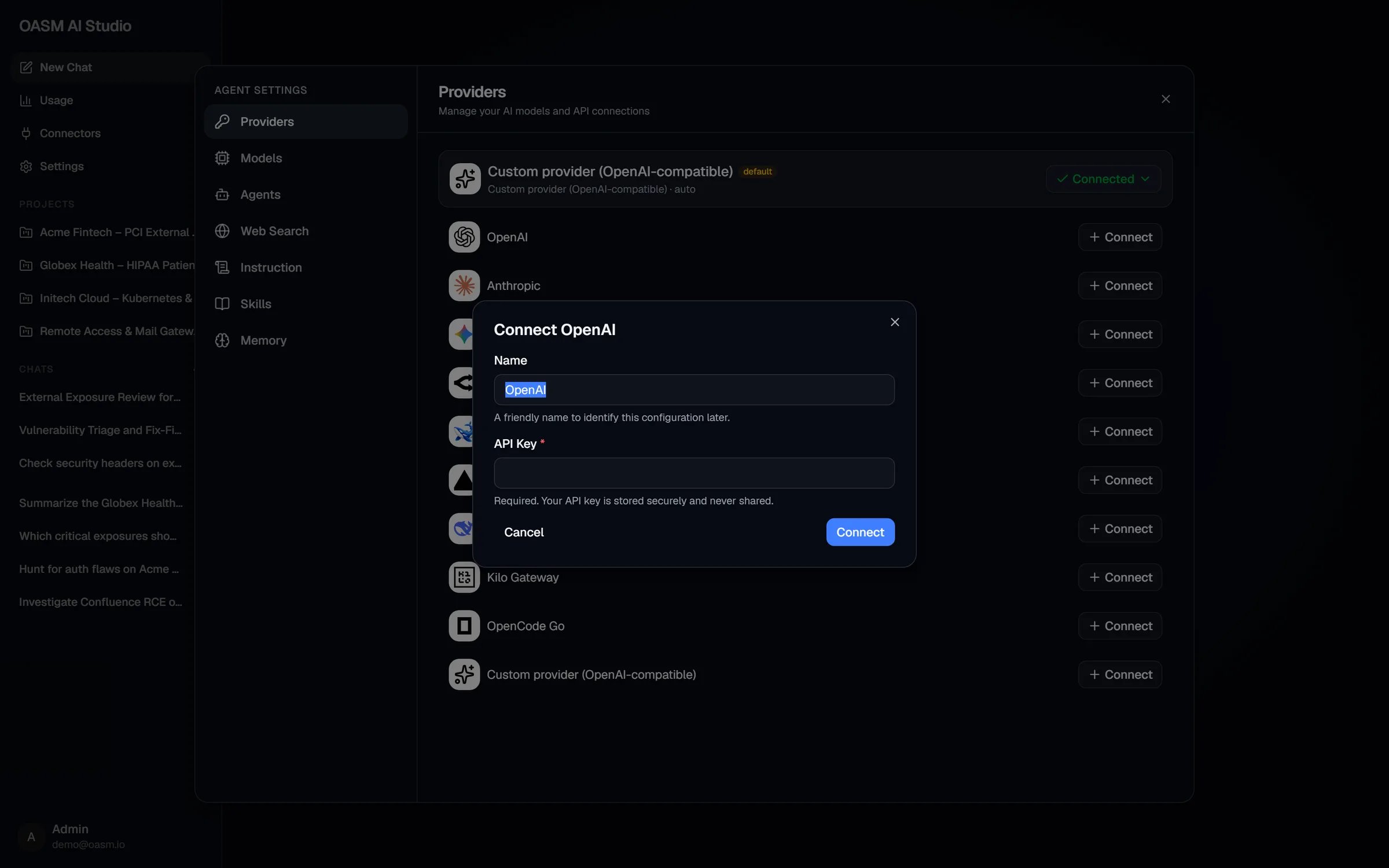
The Connect OpenAI dialog
Choose the model of a connection
Each connection has one model: the one the composer shows when that connection is your default.1
Expand the connection
In Settings → Providers, click Connected on the connection. Its row shows the name and current model, for example
My Work Key · gpt-5.2
Pick a model
Open Model, type to search, and pick a model. The list loads from the provider (Loading models… while it does). You see Model updated.
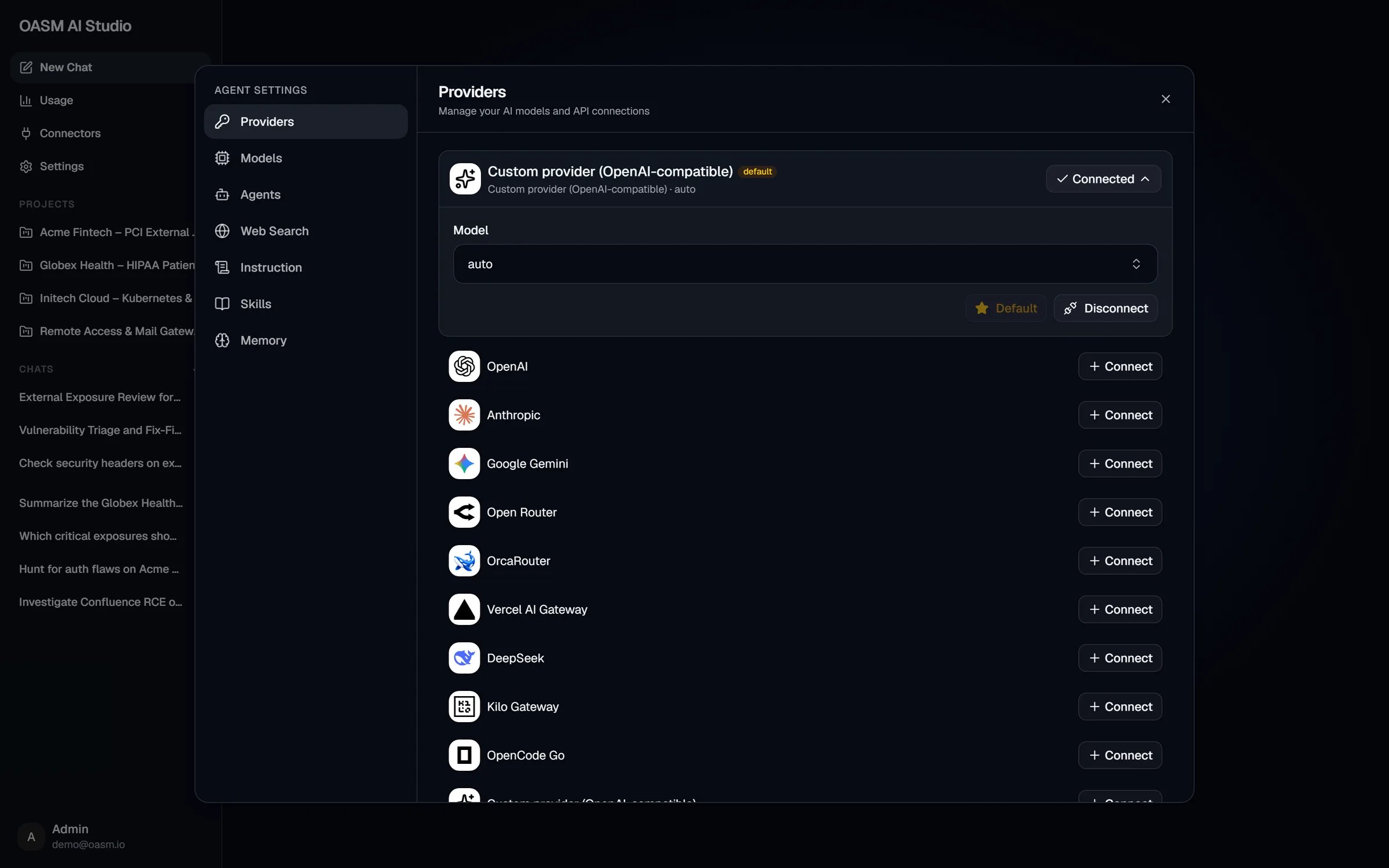
A connected provider expanded: its model, the Default badge and Disconnect
Set the default
Your default connection and its model run every new chat, and also power AI features outside AI Studio, such as AI analysis of a vulnerability and AI tag suggestions on services. To change it, expand a connection and click Set as Default. The button changes to Default, a default badge appears next to the provider name, and you see Default model updated. You can also change the default by picking a model under Default Model in Settings → Models. Both controls change the same setting.Connect several providers
The provider list always offers Connect for every provider, including ones you have already connected, so you can:- Connect different providers, for example one hosted provider and one custom endpoint.
- Connect the same provider more than once with different keys, telling them apart by Name.
Switch model and reasoning effort in a chat
The composer shows a model picker and a reasoning effort picker.1
Pick a model
Open the model picker next to the composer and pick a model. It lists the models of your default connection, with search. The next message uses that model.
2
Pick a reasoning effort
Open the effort picker (it shows Default until you pick a level) and choose a level. The levels are the ones the selected model publishes, such as Minimal, Low, Medium, High, Extra high or Max; for a model that publishes none, Low, Medium and High.
- A model picked in the composer becomes the connection’s model, and therefore your default model for new chats too.
- The effort you pick applies to that connection’s model. Default means your Default Reasoning Effort from Models, or the provider’s own default when that is not set. If a model does not offer the level you picked, it runs at the provider default.
Disconnect a provider
Expand the connection and click Disconnect. There is no confirmation step; you see Disconnected successfully. Disconnecting:- Deletes the connection and its stored API key.
- Removes the connection from your Default Model, Small Model and Subagent Model settings. If it was your default, the oldest remaining connection becomes the default.
- Stops its conversations from continuing: sending a new message in a conversation that was started with the disconnected connection fails with
LLM config not found. Start a new chat instead.
With no provider connected
- AI Studio shows Connect an AI Provider with a Connect button instead of the chat.
- The composer shows Connect LLM instead of the model picker.
- Settings → Models shows “Connect an LLM provider to choose the models the agent uses.” with a Connect a provider button.
- AI analysis of a vulnerability opens the provider settings instead of starting.
- A request that reaches the API anyway fails with
No LLM provider connected. Please connect a provider first.
Troubleshooting
Cannot connect to <provider>: invalid API key or unable to reach the provider
Cannot connect to <provider>: invalid API key or unable to reach the provider
OASM shows this when the provider’s model list comes back empty or the request fails. Check that:
- The API key is correct, active and has access to the provider’s models API.
- The OASM API server can reach the provider over the internet. The request times out after 10 seconds.
- For the providers that filter their list (see Supported providers), your key has access to at least one model that passes the filter.
The custom provider does not connect
The custom provider does not connect
For Custom provider (OpenAI-compatible) the same “Cannot connect” error means OASM could not list models from your endpoint. Check that:
- API Endpoint is the base URL including any version path, such as
https://api.myprovider.com/v1, and useshttporhttps. The form shows Invalid URL format for anything that is not a URL. GET <API Endpoint>/modelsanswers within 10 seconds with OpenAI-style JSON: an object whosedataarray holds models with anid(and optionally aname).- The endpoint answers directly. Redirects are not followed.
- The URL does not use a private, loopback or link-local IP address (for example
127.0.0.1,10.x.x.x,172.16.x.xto172.31.x.x,192.168.x.xor169.254.x.x). OASM refuses those to protect your network.
apiKey should not be empty
apiKey should not be empty
The form marks the custom provider’s API key as optional, but the API currently requires a value. If your endpoint does not check keys, enter any placeholder value: OASM sends it as a bearer token, which such endpoints ignore.
A model is missing from the list
A model is missing from the list
- Some providers’ lists are filtered to models AI Studio can use (see Supported providers). For example, OpenAI lists only
gpt-and o-series models, and Open Router lists only models that support tool calling. - Model lists are cached for up to an hour. A model the provider has just released can take that long to appear.
- For the custom provider, the list is exactly what your endpoint’s
/modelsreturns.
The selected model does not support tool calling
The selected model does not support tool calling
With Open Router, a chat fails with this message when the selected model cannot call tools, which the agent needs. Pick another model.
Failed to load providers
Failed to load providers
The provider list could not be loaded from the API. Click Retry. If it keeps failing, check that the OASM API is running and that you have the
agent.read permission.Related
Models
Default, small and subagent models, default reasoning effort and approval mode
Chat
Start a conversation in Ask or Agent mode
Usage
See the tokens and cost each model used
AI Studio overview
What AI Studio is and how an agent task flows