
Start a project chat
1
Open a chat for the project
In AI Studio, click the project under Projects in the sidebar. Or open the project from Projects in the console and click Chat with agent.
2
Check the scope and mode
The project shows above the composer, and the chat is in Agent mode. Click Agent to switch back to Ask mode if you only have questions. Until you send, you can still pick another project, or Whole workspace.
3
Send your request
Type what you want done, or pick a starter prompt, and press Enter. From now on the chat is locked to the project.
agent.read; the project page also needs project.read.
What the lock means
Once you send the first message, the project is fixed for the life of the chat. It shows above the composer with its color; hover over it to read “The agent only reads and acts inside this project”. To work on another project, or on the whole workspace, start a new chat. Inside a project chat:- Workspace data stays in the project. Every lookup the agent makes (assets, vulnerabilities, ports, technologies, TLS certificates, statistics) and every project tool only returns and changes data of this project, whatever the agent asks for. When you ask about something outside it, the agent says so.
- Scans stay in the project’s scope. When the project has include rules, the scope check uses the project’s include and exclude rules instead of the workspace targets. A tool run or subagent aimed outside them is refused; a host outside them named in a shell command asks for your approval, even in Auto; an excluded host is always refused.
- The agent follows the project’s instructions and reads its files, described below.
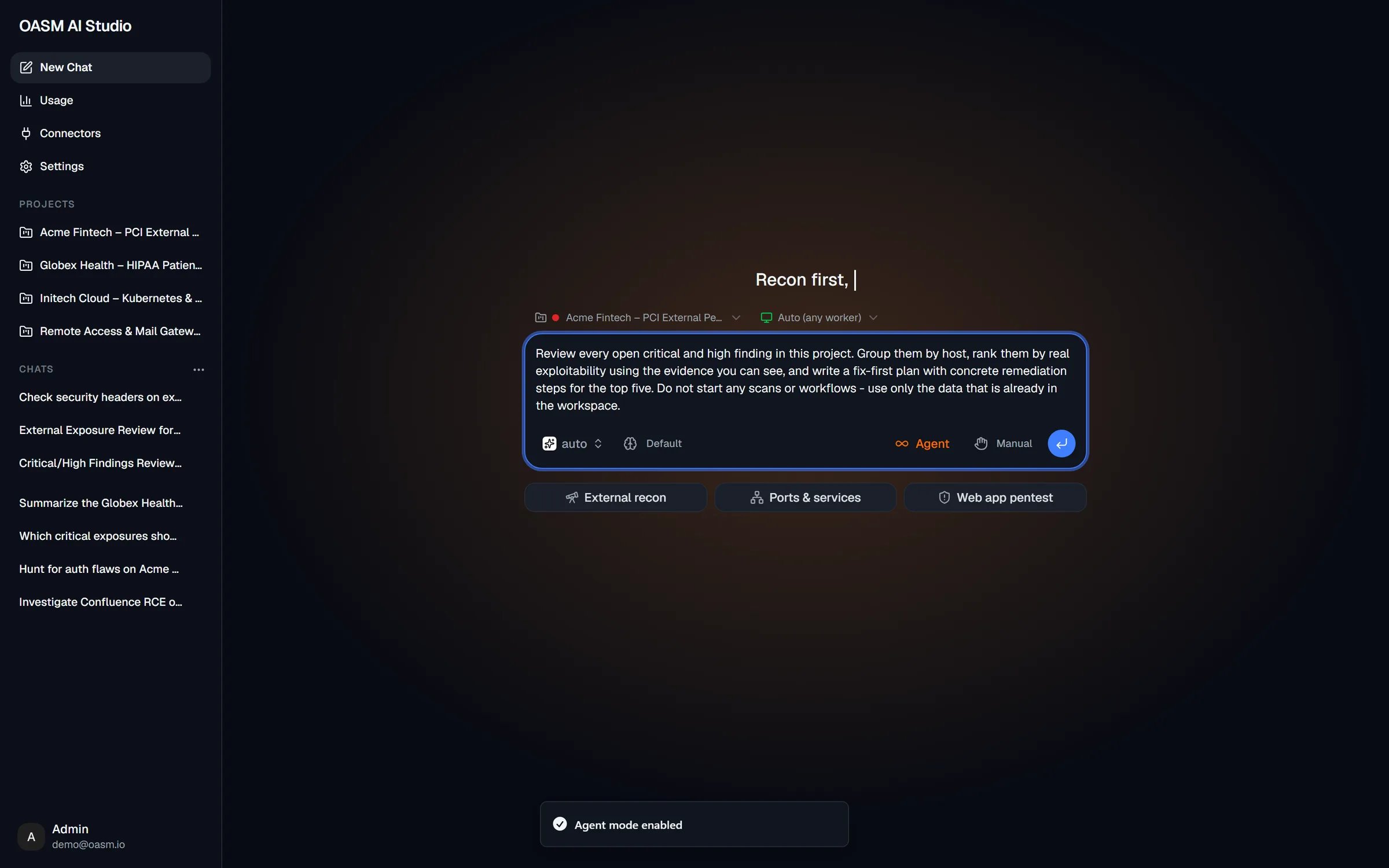
A project chat: the project is shown above the composer for the life of the chat
Project instructions and files
The AI agent card on the project’s Settings tab holds the context every AI Studio chat started from the project receives.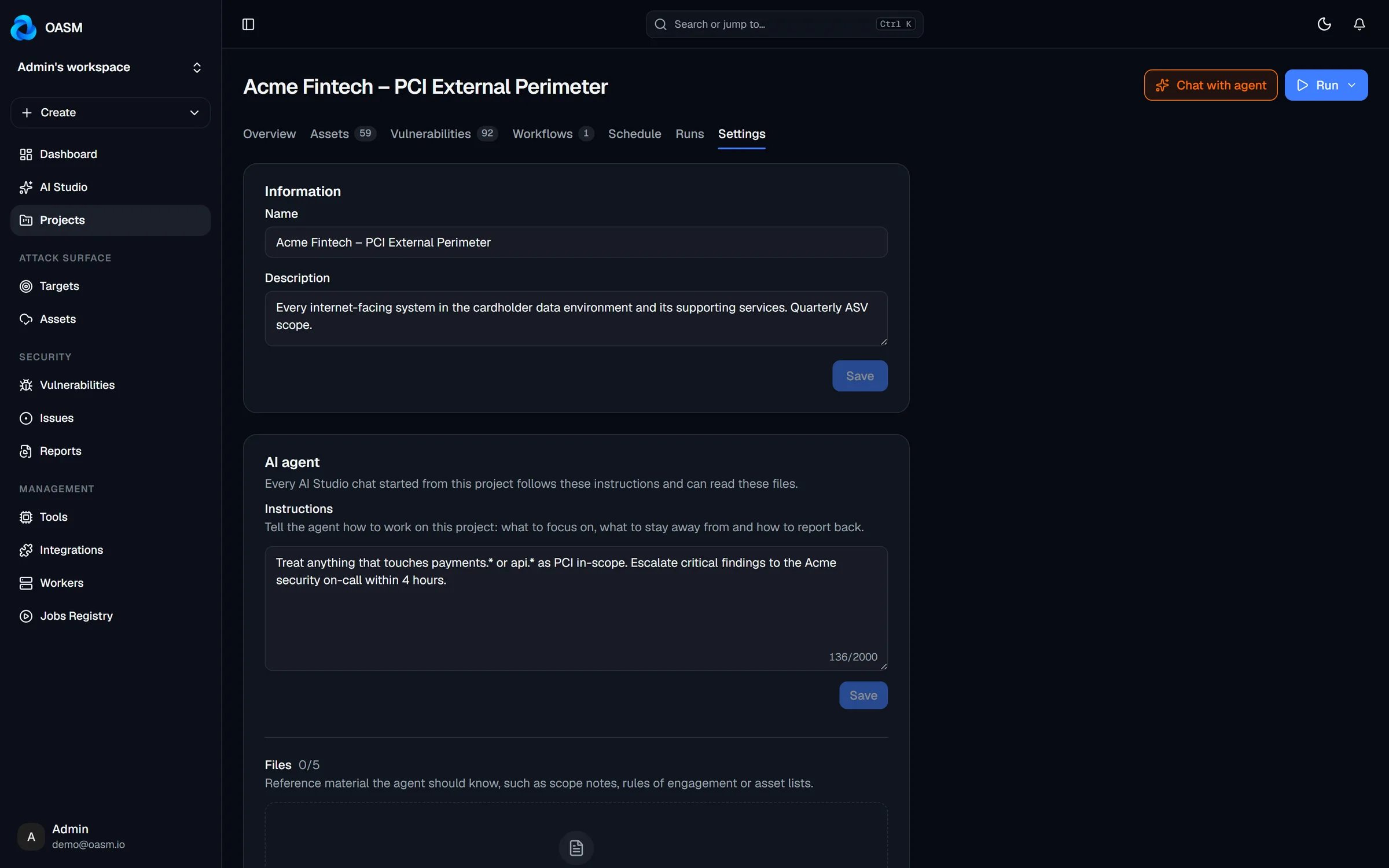
The AI agent card on a project's Settings tab
Write the instructions
1
Open the project's settings
Open the project and click the Settings tab.
2
Write the instructions
In Instructions, tell the agent how to work on this project: what to focus on, what to stay away from and how to report back. For example: “Only test the staging hosts and rank findings by business impact”. The counter shows how many of the 2,000 characters you used.
3
Save
Click Save under the box. The console confirms with “Instruction saved”. Clearing the box and saving removes the instructions.
Attach reference files
1
Upload a file
Under Files, click Upload and pick a
.md, .txt or .csv file of up to 10 MB, such as scope notes, rules of engagement or an asset list.2
Check the list
The file shows with its size and who added it. The counter next to Files shows how many of the five slots are used; Upload is disabled when all five are.
3
Detach a file
Click × next to a file to detach it from the project.
project.write permission. See Projects.
How the agent uses them
At every turn of a project chat, the agent receives:- the project’s name, and that the chat is locked to it,
- the instructions, marked as set by the project’s members, for it to follow,
- the start of each attached file: up to 8,000 characters per file and 30,000 characters across all files.
project.write permission and, in Manual mode, your approval like any other change.
Archived projects
An archived project is read-only, and so is its AI agent card: you cannot change the instructions or files until the project is reopened.- Archived projects are not listed under Projects in the AI Studio sidebar, or in the project selector.
- Chat with agent on an archived project’s page still opens a chat locked to it.
- In a chat about an archived project, the agent is told the project is archived and read-only. It can still read the project’s data and its instructions and files, but changes to the project, such as its scope, workflows or instructions, are refused until it is reopened.
Deleting a project deletes its chats
Deleting a project also deletes every AI Studio chat locked to it, for every member, with their messages, plans and subagents. The confirmation says so: “Its workflows, their run history and its AI Studio chats go with it.” Vulnerabilities and assets stay in the workspace. Deletion cannot be undone. To keep the chats, archive the project instead.Related
Projects
Scope, workflows, triggers and the AI agent card
Chat
The composer, modes and conversations
Plans and approvals
The scope check and the other safety checks
Instruction
Personal instructions for all your chats