
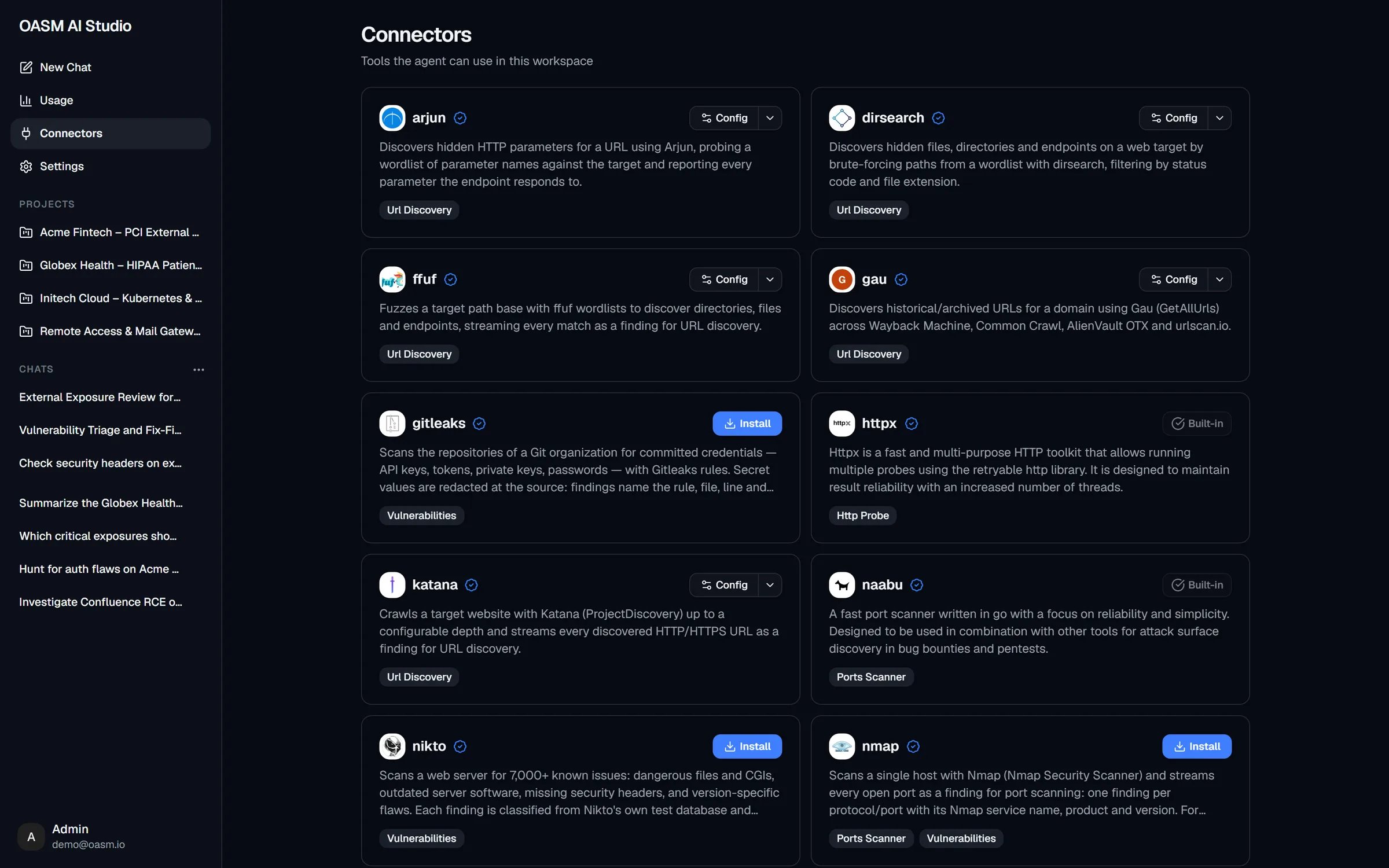
The Connectors page: installed connectors show Config, built-in tools show Built-in, and available connectors show Install
What the page lists
Connectors that are not enabled for the agent do not appear here; you still find them on the Tools page for use in projects and jobs.
Each card shows the tool’s name, logo, a check mark for officially supported tools, its description and its category badges. Clicking the card opens the tool’s detail page.
How the agent uses these tools
- The agent can run built-in tools and installed agent connectors. It refuses a connector that is not installed in the workspace.
- Running a tool needs Agent mode and an online worker; in Ask mode the agent only reads workspace data. See Chat.
- When the agent runs a connector, it picks a configuration profile or fills in non-secret settings itself. A run is refused while a required setting is still empty, so configure secrets such as API keys in a profile first.
- Every tool call goes through the same safety checks and, in Manual mode, the same approval prompt. See Plans and approvals.
Install a connector for the agent
1
Open Connectors
In the AI Studio sidebar, click Connectors.
2
Install
Click Install on the connector’s card. The Install <name> dialog shows the workspace, what the tool does and the data shared with it. Click Install to confirm. The console confirms with “Tool installed successfully” and you stay on the page.
3
Configure it
Click Config on the card to open the configuration sheet and create a configuration profile, for example with the tool’s API key. Connectors that need no settings can be used right away.
See Permissions.
Connectors and the Tools page
The Connectors page is a filtered view of the same workspace tool catalog as Tools. Installing, configuring or uninstalling a tool here is the same action as on the Tools page, and the change applies to scans and projects as well as to the agent. The one difference: installing from Tools takes you straight to the new connector’s configuration, while installing from AI Studio keeps you on the list. To package your own tool as a connector, see Connectors overview.External MCP servers
The agent can also use tools from external servers that speak the Model Context Protocol (MCP). These servers are configured per workspace, and every member’s main agent gets their tools. There is no console screen for this yet. Manage the servers through the API under/api/agents/mcp-configs:
The body of
PUT accepts these fields:
- Each tool is named
<server>_<tool>, for exampleintel_lookup_hostfor the toollookup_hoston a server namedintel. If that name collides with a built-in tool, the built-in tool wins. - External tools go through the built-in deny list, the workspace tool rules (managed by the workspace owner through
/api/agents/tool-rules) and, in Manual mode, the approval prompt, which shows Allow <tool>? with the arguments and the server the tool comes from. - Only the main agent gets external MCP tools; subagents do not.
Using OASM from your own AI client
The servers above are tools the AI Studio agent calls. The opposite direction, letting an external AI client such as Claude or Cursor read your OASM workspace, is the OASM MCP server. See MCP Server.Related
Tools
The full tool catalog, configuration profiles and tool details
MCP Server
Connect external AI clients to your workspace
Workers
Where the agent’s tools run
Plans and approvals
Approval prompts for commands and tool calls