
- The plan. In Agent mode the agent writes a plan, and nothing runs until you approve it.
- Each call. While the plan runs, the approval mode decides whether a command waits for your yes.
Approval modes
In Manual, these ask first:
- shell commands and tool connector runs on the worker,
- changes to projects, targets and installed tools, and starting project workflows,
- proposing a finding for review,
- fetching a public web page,
- tools of external MCP servers, unless the server marks the tool as read-only.
Where the mode is set
Opening an existing chat shows that chat’s saved mode. A change you make in an open chat applies from your next message, and it clears any allow choices you made earlier in the chat.
When the agent writes a plan
Plans exist in Agent mode only. Ask mode never plans. In Agent mode, every tool call waits for an approved plan with a step in progress. That includes read-only lookups: a call made earlier is refused and shows Needs plan in the chat, and the agent writes a plan instead. A reply that needs no tool, such as a clarifying question, needs no plan. How a plan comes together:- When you send a task, OASM pins a goal for it: the one outcome you want, with what counts as success. It shows as Goal above the plan.
- The agent writes the plan: an ordered list of outcomes, such as “Attack surface mapped” or “Candidates validated”, rather than the tools it will use. A plan has at most 20 steps.
- The Run this plan? prompt replaces the composer until you decide.
Approve a plan
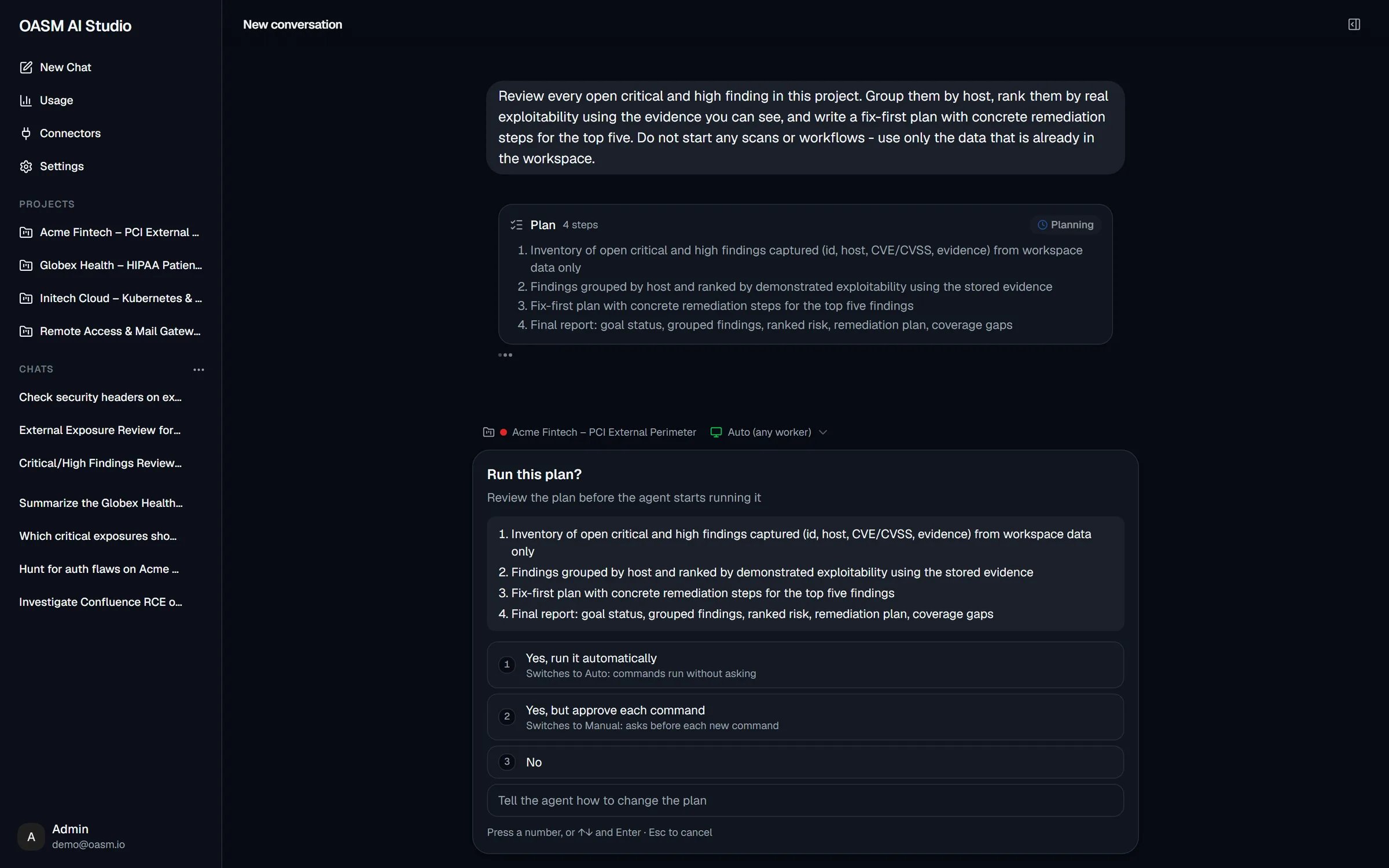
Reviewing a four-step plan before the agent starts
The prompt applies in both approval modes: even in Auto, a new plan waits for you.
Change a plan with feedback
1
Open the feedback box
Click Tell the agent how to change the plan, or press ↓ until it is selected.
2
Say what to change
For example: “Skip the port scan and only check the TLS configuration of app.example.com”.
3
Send it
Press Enter. The plan is discarded and the agent sends a new one in a new Run this plan? prompt.
Approve a command or tool call
In Manual mode, each new call that can change something waits for you:- A shell command shows Run this command? with the exact command line.
- Any other tool shows Allow followed by the tool’s name, for example Allow Run Tool Connector?, with a short description and the arguments the agent passes. Long values are cut; click Show all to read them in full.
- A tool from an external MCP server also shows MCP server: with the server name, and the hints the server declares: Read-only, May be destructive, Idempotent or Uses external services.
A rejected call is not retried. The agent follows your feedback, or asks you how to proceed.
The allow choices last for the chat. They are cleared when the approval mode changes, including when you approve a new plan. They never cover a call that a safety check escalated (see below): that one always asks.
Keyboard
The prompt ignores clicks and keys for the first half second after it appears, so a keystroke meant for the composer does not answer it by accident.
Unanswered prompts
A plan or call prompt waits five minutes. After that it counts as a rejection and the agent carries on accordingly. The prompt is tied to the run, not to your browser tab. If you leave the chat and come back within the five minutes, the prompt is shown again. Stop rejects any prompt that is still waiting. Answering prompts needs theagent.write permission.
What runs without a prompt in subagents
Subagents work in the background, where nobody sees a prompt:- A built-in agent running as a subagent runs its commands and tools without asking, in both approval modes. You approve its work through the plan.
- A custom agent running as a subagent gets read-only tools in a Manual chat. In an Auto chat it gets the tools it declares.
- A call that a safety check escalates to a prompt is refused in a subagent instead of waiting.
Safety checks that always run
These checks run before any approval, in Auto mode too, and for subagents. A call they refuse never runs, whatever you approve.
The scope is the project’s include and exclude rules in a project chat whose project has include rules; otherwise it is the workspace’s domain, IP and CIDR targets. A domain target covers its subdomains. Assets inside that scope count too.
An escalated call shows Needs approval: followed by the reason at the top of the prompt, for example that a host may be outside the workspace targets.
Workspace tool rules have no console page yet: workspace owners manage them through the
/api/agents/tool-rules endpoints. Rules use wildcard patterns (* for any run of characters, ? for one character) matched, ignoring case, against the whole command or tool input. A rule without a pattern matches every call of its tool.Best practices
- Read every plan before approving it. Use Tell the agent how to change the plan rather than approving a plan you would only partly run.
- Keep Manual for work you have not reviewed. Pick Yes, run it automatically only for a plan whose every step you are happy to run unattended.
- Use Yes, allow tool in this conversation for a tool you trust in this chat, rather than allow all requests.
- Run engagements from a project chat, so the scope check uses the project’s scope rules.
Related
Chat
The composer, Ask and Agent mode, and stopping a run
Side panel
Follow the plan, subagents and tool calls while they run
Models
Set the default approval mode
AI agent architecture
How the plan and approval gates work inside the runtime