Watch the plan, the workflow of subagents, the browser, every tool call and the turn stats of an AI Studio conversation
The side panel shows what happens behind an answer: the plan and its progress, the subagents the agent dispatched and how they connect, the pages the agent’s browser loaded, every tool call with its input and output, and how much context and time the run used.
Open the side panel
In a conversation, click Open side panel at the top right of the chat. A blue dot on the button means a subagent is still queued or running.
Large screens (1024 px and wider): the panel opens beside the chat. Drag the divider between them to resize it, or focus the divider and use ←→. Double-click the divider to go back to the default width. The width you set, and whether the panel is open, are kept in this browser.
Smaller screens: the panel opens full screen over the chat.
The panel opens on the tab you used last, or, if that tab has nothing to show, on the first tab that has. Click Close side panel at its top right to close it.
Tabs
The tab bar shows each tab’s count while there is something to count:
Tab
Badge
Plan
Steps completed out of all steps, such as 3/4
Workflow
None
Subagents
Subagents running, highlighted in blue, or all subagents once none is running
Browser
Number of browser views, when there is more than one
Tool calls
Calls finished out of all calls, such as 29/30; blue while some are still running
Stats
None
On narrower panels the tabs show only their icon and badge; hover over one to see its name.
Plan
Workflow
Subagents
Browser
Tool calls
Stats
The Plan tab shows the goal of the current task and the steps of its plan.
Goal: the outcome OASM pinned for the task. It reads Goal · done once every step is completed or failed.
Steps: each step with its status, a progress bar, and a count such as “4/4 done”.
Step status
How it shows
Pending
Empty circle
In progress
Spinner, step in bold
Completed
Green check, step struck through
Failed
Red cross, step in red
The Plan tab after every step is done
On medium-sized screens the plan also sits, folded, above the composer. Click it to unfold it; folded, it shows the step in progress.With no plan yet, the tab reads “No plan yet”. Ask mode never writes one. See Plans and approvals.
The Workflow tab draws the conversation as a graph, read from top to bottom: the goal, each plan step, the subagents dispatched for that step, and the links between them. Below the graph, the Notebook lists what the agents shared with each other.
The Workflow graph and the shared notebook
Nodes
Goal: the goal and how many agents worked on it.
Step: the step number and text, its status, and how many agents served it.
Agent: a subagent’s name, its status icon, its objective, and once it ends its outcome: done, partial or blocked. “Waiting for 2 agent(s)” means it is queued behind other subagents; “3 candidate findings” counts the findings it handed back.
Legend
Link
Meaning
Plan
The order of the goal and the plan steps
Feeds next step
A step’s last results carry over into the next step
Dispatched
The step a subagent was dispatched for
Waits for
The subagent starts only after the linked ones end, and receives their results
Derived from
The subagent was dispatched because of the linked subagent’s result, for example to verify its finding
Follow-up (dashed)
The agent sent the subagent more work after its first result
A link that work is flowing through right now carries a moving pulse.Use the graph
Click an agent node to show its details under the graph: what it waits for, derives from or follows up, its summary, its candidate findings with their severity, any error, and its full transcript (see the Subagents tab). Click it again to hide them.
A running or queued subagent has a Stop button in its details. Stopping one subagent leaves the rest of the run going.
Use the zoom buttons at the bottom left to zoom and fit the graph.
Click Expand to open the graph full screen. There you can also zoom with the scroll wheel, and the selected agent’s details show beside the graph.
NotebookThe notebook holds the facts, decisions and open questions the agents write down while they work, each with its author: @main for the main agent, or the subagent’s name. Every subagent dispatched later receives the newest entries, so a scope decision or an excluded host is written down once and respected by everyone.
Entry
Icon
Fact
Book
Decision
Light bulb
Issue (an open question)
Amber warning sign
With no subagents yet, the tab reads “No workflow yet”.
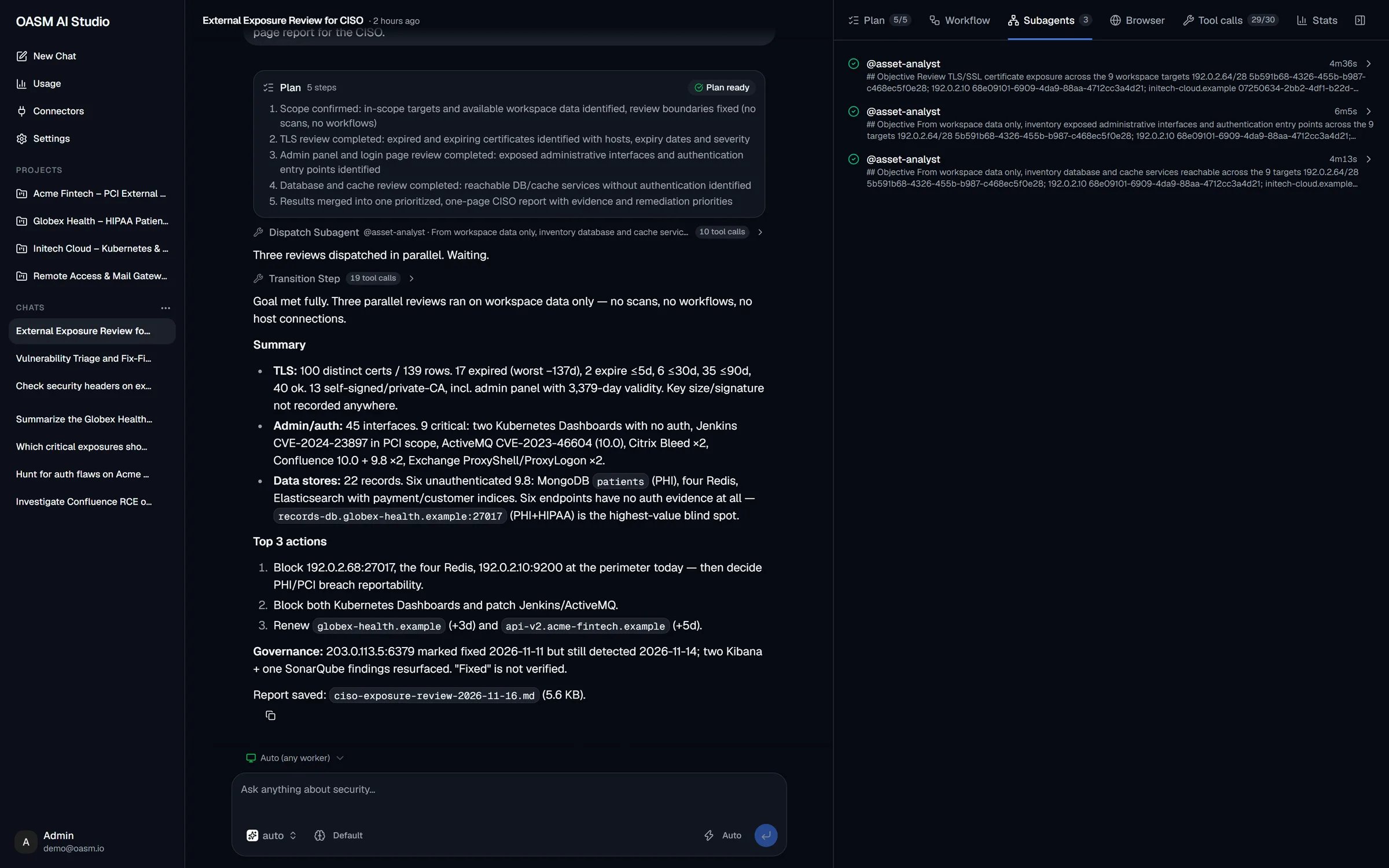
The Subagents tab lists every subagent of the conversation in the order they were dispatched.
Three subagents dispatched in parallel
Each row shows:
the subagent’s name, such as @asset-analyst,
its status icon: Queued, Running, Done, Failed or Cancelled,
its run time, counting up while it runs (the status name instead, until it starts),
the start of its brief, which opens with its Objective.
Open a subagent’s transcriptClick a row to unfold it. The transcript has two views:
Conversation: the brief the main agent sent, then the subagent’s work as a chat, with its text and tool calls, ending with its final result. Next to the views, the number of steps and the tokens in and out.
Tool calls: each tool call of the subagent. Click one to see its input and its output or error.
While the subagent runs, the transcript refreshes every few seconds. A queued subagent reads “Queued, waiting for a free slot…”, and one cancelled by Stop reads “Cancelled when the conversation was stopped.” A very long run records only its first steps, and the transcript says so.
The Browser tab is a live view of the headless browser the agent drives on the worker. After each browser command, the page as it looks then replaces the previous picture of that browser session.
Each browser session has its own view, titled with who drives it: Main agent, or the subagent’s name. The session ID shows at the top right.
Under the title, the command that took the picture. While a command runs, it shows with a Running label.
With several views, the one updated last has a blue border.
For the main agent’s commands, Show in chat scrolls the chat to the command.
The view is live only: pictures are not stored, so after a reload the tab fills again with the next command. With no browser command yet, the tab reads “No live view yet”.
The Tool calls tab lists every tool call of the main agent in this conversation, the newest at the bottom. The list follows new calls as they arrive.
Tool calls with their input and output
Each row shows the tool’s name with its status icon and, for some tools, a short detail of the call, such as the subagent a dispatch went to.
Click a row to unfold its Input and Output (or Error). Long values are cut; expand them to read them in full. A shell command shows as a terminal with its output, live while it runs.
Click Show in chat (the target icon) to scroll the chat to the call and highlight it, unfolding its group if needed. On a small screen the panel closes so you can see it.
A subagent’s own tool calls are in its transcript, on the Subagents tab.
The Stats tab shows how much of the model’s context the conversation uses, and the stats of the last turn. It fills in after the first answer.
Context usage and turn stats
ContextThe model in use, the share of its context window used (amber from 80%), and the tokens used out of the window, such as “81.9K / ~2M context”. Next to it, where the window size comes from:
Label
Source
set in model settings
A context window you set for the model
from models.dev
The public model catalog
default (model unknown)
A default size, for a model the catalog does not know
A ~ before the window size means it is an estimate.Turn stats
Row
What it shows
Response
Output speed while the model was answering, in tokens per second
Whole turn
Output speed over the whole turn, including tool time
Model time
Time spent waiting on the model
Tool time
Time spent running tools
Subagent wait
Time the main agent waited for subagents. Shown only when it waited
Average TTFT
Average time to the first token of each model call
Steps
Model calls in the turn
Tokens
Tokens sent (↑) and generated (↓)
Cache
Share of input tokens served from the provider’s cache
Cost
Estimated cost of the turn. n/a when the model has no known price
Total (N turns)
Estimated cost of every turn of the conversation. Shown from the second turn; ≥ means some turns had no known price
For usage across all your conversations, see Usage.
How subagents work
In Agent mode the main agent orchestrates: it reads workspace data, keeps the plan, and hands the hands-on work, such as scanning, crawling, testing one surface or verifying one finding, to subagents. Each subagent is one of the agents available to you, given one focused job.
Dispatch
For each job, the main agent writes a brief: the objective with its exact targets, what to hand back, what is already known, what to do and what not to do. A subagent sees only its brief, its role’s instructions and the newest notebook entries, so the brief has to stand on its own. Its targets must be inside the scope, or the dispatch is refused (see Safety checks).Each subagent has its own context window and step budget. A long scan costs the main agent one structured result instead of pages of raw output.
Parallel and chained work
Independent jobs are dispatched together and run side by side. A conversation can have up to 10 subagents queued or running at once. Each OASM API server runs up to four subagents at the same moment, across all conversations; the rest wait as Queued.
A job that needs another job’s output is dispatched right away with a Waits for link. It starts when those jobs end, whether they succeeded or not, and receives their results directly.
A subagent can get a follow-up message from the main agent (a Follow-up link), for example when its result was partial or raised a question.
A subagent that runs longer than 20 minutes is stopped and marked failed.
Results and waiting
When a subagent finishes, it hands back a structured result: an outcome (done, partial or blocked), a summary, candidate findings, facts and open questions. Facts and open questions go into the notebook. The result reaches the main agent on its own at its next step; the main agent does not poll. When nothing else is left to do, it waits for the running subagents, up to about eight minutes per message. Results that arrive later are handed to it at your next message.A plan step that dispatched subagents is complete only once their results are back and read, not when they were dispatched.
What subagents may run
Subagents run unattended: no approval prompt reaches you from them.
A built-in agent runs the commands and tools its role needs without asking, in both approval modes.
A custom agent gets read-only tools in a Manual chat, and the tools it declares in an Auto chat.
The safety checks still apply, and a call they would escalate to a prompt is refused.
Stop in the composer ends the run and cancels every queued and running subagent of the conversation. Their rows turn Cancelled.
Stop in an agent’s details on the Workflow tab cancels that one subagent only.
Closing the browser tab stops nothing: the run and its subagents keep going on the server.
Related
Chat
The composer, modes and conversations
Plans and approvals
Approve plans and commands
Agents
The built-in and custom agents subagents are drawn from
Usage
Tokens and cost across all your conversations
⌘I
{"docsConfig":{"theme":"maple","$schema":"https://mintlify.com/docs.json","name":"OASM","colors":{"primary":"#3471FF","light":"#3F7EFF","dark":"#3471FF"},"logo":"https://mintcdn.com/oasmplatform/EA9X9n_Tn9AWO8GU/logo/oasm-logo.png?fit=max\u0026auto=format\u0026n=EA9X9n_Tn9AWO8GU\u0026q=85\u0026s=24a2400cb969b09bb5776f8baaf45987","favicon":"https://mintcdn.com/oasmplatform/EA9X9n_Tn9AWO8GU/favicon.ico?fit=max\u0026auto=format\u0026n=EA9X9n_Tn9AWO8GU\u0026q=85\u0026s=4ffd59fa0999d5ddd805cfa394871c58","api":{"playground":{"display":"interactive"},"examples":{"defaults":"required","languages":["curl","python","javascript","go"],"prefill":true,"autogenerate":true}},"appearance":{"default":"system","strict":false},"background":{"decoration":"gradient","color":{"light":"#FAFCFE","dark":"#08090B"}},"navbar":{"links":[{"href":"mailto:[email protected]","label":"Support"}]},"footer":{"socials":{"github":"https://github.com/oasm-platform","linkedin":"https://www.linkedin.com/company/oasm-platform","x":"https://x.com/OasmPlatform"},"links":[{"header":"Legal","items":[{"label":"Cookie settings","href":"/"}]}]},"seo":{"indexing":"all"},"fonts":{"family":"Google Sans Flex"},"icons":{"library":"lucide"},"contextual":{"options":["copy","view","chatgpt","claude","perplexity","mcp","cursor","vscode"],"display":"header"},"styling":{"latex":false},"navigation":{"pages":[]}},"deployment":{"deploymentMetadataValue":{"subdomain":"oasmplatform","hasAudioNarration":false,"actualSubdomain":"oasmplatform","customDomains":["docs.oasm.io"],"gitSource":{"type":"github","owner":"oasm-platform","repo":"mintlify-docs","deployBranch":"main","contentDirectory":"","isPrivate":true,"mountPath":"","label":""},"entitlements":{},"buildId":"6affb0652f1aa158622308f9","clientVersion":"0.0.4248","searchFilterCounts":[{"language":"default","tag":"API Reference","count":189},{"language":"default","tag":"Documentation","count":65},{"language":"default","tag":"Agents","count":28},{"language":"default","tag":"Projects","count":28},{"language":"default","tag":"Integrations","count":19},{"language":"default","tag":"AI Studio","count":15},{"language":"default","tag":"Assets","count":12},{"language":"default","tag":"Attack Surface Query","count":11},{"language":"default","tag":"Tools","count":10},{"language":"default","tag":"Workspaces","count":10}]},"assistantConfig":{"enableAskAiButton":false,"enableStarterQuestions":false,"enableAskAiSearchBar":true},"basePath":"","hasChatPermissions":false,"hasWebMcpPermissions":false,"toggles":[{"name":"kill-isr","enabled":true,"variant":{"name":"disabled","enabled":false,"feature_enabled":true},"impressionData":false},{"name":"custom-rbac-roles","enabled":true,"variant":{"name":"disabled","enabled":false,"feature_enabled":true},"impressionData":false},{"name":"agent-mintlify-slack","enabled":true,"variant":{"name":"disabled","enabled":false,"feature_enabled":true},"impressionData":false},{"name":"agent-integrations-settings","enabled":true,"variant":{"name":"disabled","enabled":false,"feature_enabled":true},"impressionData":false},{"name":"rbac-expansion","enabled":true,"variant":{"name":"disabled","enabled":false,"feature_enabled":true},"impressionData":false},{"name":"automations-pr-grouping","enabled":true,"variant":{"name":"disabled","enabled":false,"feature_enabled":true},"impressionData":false},{"name":"custom-prefix","enabled":true,"variant":{"name":"disabled","enabled":false,"feature_enabled":true},"impressionData":false},{"name":"analytics-v7","enabled":true,"variant":{"name":"disabled","enabled":false,"feature_enabled":true},"impressionData":false},{"name":"user-flows-analytics","enabled":true,"variant":{"name":"disabled","enabled":false,"feature_enabled":true},"impressionData":false},{"name":"no-publish-flow","enabled":true,"variant":{"name":"disabled","enabled":false,"feature_enabled":true},"impressionData":false},{"name":"workos-onboarding","enabled":true,"variant":{"name":"disabled","enabled":false,"feature_enabled":true},"impressionData":false},{"name":"snapshot-serving-live","enabled":true,"variant":{"name":"disabled","enabled":false,"feature_enabled":true},"impressionData":false},{"name":"stripTemperatureMiddleware","enabled":true,"variant":{"name":"disabled","enabled":false,"feature_enabled":true},"impressionData":false},{"name":"support-platform-pylon-zendesk","enabled":true,"variant":{"name":"disabled","enabled":false,"feature_enabled":true},"impressionData":false},{"name":"snapshot-serving","enabled":true,"variant":{"name":"disabled","enabled":false,"feature_enabled":true},"impressionData":false},{"name":"instant-rollback","enabled":true,"variant":{"name":"disabled","enabled":false,"feature_enabled":true},"impressionData":false},{"name":"granular-notifications-server","enabled":true,"variant":{"name":"disabled","enabled":false,"feature_enabled":true},"impressionData":false},{"name":"granular-notifications","enabled":true,"variant":{"name":"disabled","enabled":false,"feature_enabled":true},"impressionData":false},{"name":"automations-fable","enabled":true,"variant":{"name":"disabled","enabled":false,"feature_enabled":true},"impressionData":false},{"name":"fixed-ai-action-pricing","enabled":true,"variant":{"name":"disabled","enabled":false,"feature_enabled":true},"impressionData":false},{"name":"site-roles","enabled":true,"variant":{"name":"disabled","enabled":false,"feature_enabled":true},"impressionData":false},{"name":"automation-resolve-merge-conflict","enabled":true,"variant":{"name":"disabled","enabled":false,"feature_enabled":true},"impressionData":false},{"name":"scoped-publishing","enabled":true,"variant":{"name":"disabled","enabled":false,"feature_enabled":true},"impressionData":false},{"name":"mintql","enabled":true,"variant":{"name":"disabled","enabled":false,"feature_enabled":true},"impressionData":false},{"name":"page-level-analytics","enabled":true,"variant":{"name":"disabled","enabled":false,"feature_enabled":true},"impressionData":false},{"name":"editor-version-history-v2","enabled":true,"variant":{"name":"disabled","enabled":false,"feature_enabled":true},"impressionData":false},{"name":"billing-page-v2","enabled":true,"variant":{"name":"disabled","enabled":false,"feature_enabled":true},"impressionData":false},{"name":"full-page-search","enabled":true,"variant":{"name":"disabled","enabled":false,"feature_enabled":true},"impressionData":false},{"name":"workspace-projects","enabled":true,"variant":{"name":"disabled","enabled":false,"feature_enabled":true},"impressionData":false},{"name":"assistant-v5","enabled":true,"variant":{"name":"disabled","enabled":false,"feature_enabled":true},"impressionData":false},{"name":"fork-pr-previews","enabled":true,"variant":{"name":"disabled","enabled":false,"feature_enabled":true},"impressionData":false},{"name":"revalidation-jwt","enabled":true,"variant":{"name":"disabled","enabled":false,"feature_enabled":true},"impressionData":false},{"name":"workos-sso-scim","enabled":true,"variant":{"name":"disabled","enabled":false,"feature_enabled":true},"impressionData":false},{"name":"hobby-abuse-scan","enabled":true,"variant":{"name":"disabled","enabled":false,"feature_enabled":true},"impressionData":false},{"name":"dashboard-inbox","enabled":true,"variant":{"name":"disabled","enabled":false,"feature_enabled":true},"impressionData":false},{"name":"workos-signup","enabled":true,"variant":{"name":"disabled","enabled":false,"feature_enabled":true},"impressionData":false},{"name":"turbopuffer-dual-write","enabled":true,"variant":{"name":"disabled","enabled":false,"feature_enabled":true},"impressionData":false},{"name":"workos-enabled","enabled":true,"variant":{"name":"disabled","enabled":false,"feature_enabled":true},"impressionData":false},{"name":"approve-review-flow","enabled":true,"variant":{"name":"disabled","enabled":false,"feature_enabled":true},"impressionData":false},{"name":"editor-metadata","enabled":true,"variant":{"name":"disabled","enabled":false,"feature_enabled":true},"impressionData":false},{"name":"sso-setup-deadline-banner","enabled":true,"variant":{"name":"disabled","enabled":false,"feature_enabled":true},"impressionData":false},{"name":"turbopuffer-serve","enabled":true,"variant":{"name":"disabled","enabled":false,"feature_enabled":true},"impressionData":false},{"name":"live-agents","enabled":true,"variant":{"name":"disabled","enabled":false,"feature_enabled":true},"impressionData":false},{"name":"starter-pricing","enabled":true,"variant":{"name":"control","enabled":true,"payload":{"type":"string","value":"control"},"feature_enabled":true},"impressionData":false},{"name":"llms-txt-v2","enabled":true,"variant":{"name":"disabled","enabled":false,"feature_enabled":true},"impressionData":false},{"name":"wildcard-email-auth","enabled":true,"variant":{"name":"disabled","enabled":false,"feature_enabled":true},"impressionData":false}],"googleFontsInlined":true},"customCss":[{"filePath":"style.css","content":"span.pointer-events-none.absolute.inset-0[class*=\"h-[64rem]\"]{background-repeat:no-repeat!important;background-size:100% 500px!important;background-image:radial-gradient(60rem 36rem at 50% -2rem, rgba(59, 130, 246, 0.22), transparent 55%),\n radial-gradient(40rem 24rem at 15% 0%, rgba(59, 130, 246, 0.1), transparent 55%),\n radial-gradient(40rem 24rem at 85% 0%, rgba(59, 130, 246, 0.1), transparent 55%)!important}html:not(.dark) span.pointer-events-none.absolute.inset-0[class*=\"h-[64rem]\"]{background-image:radial-gradient(60rem 36rem at 50% -2rem, rgba(59, 130, 246, 0.12), transparent 55%),\n radial-gradient(40rem 24rem at 15% 0%, rgba(59, 130, 246, 0.06), transparent 55%),\n radial-gradient(40rem 24rem at 85% 0%, rgba(59, 130, 246, 0.06), transparent 55%)!important}.oasm-consent{position:fixed;left:16px;right:16px;bottom:16px;z-index:60;margin:0 auto;max-width:560px;display:flex;flex-direction:column;gap:16px;padding:20px;border-radius:16px;border:1px solid rgba(255, 255, 255, 0.12);background:rgba(16, 17, 21, 0.96);color:#c9c9c9;font-size:14px;line-height:1.5;box-shadow:0 30px 80px -20px rgba(0, 0, 0, 0.85);backdrop-filter:blur(12px)}.oasm-consent p{margin:0}.oasm-consent strong{font-weight:500;color:#fafafa}.oasm-consent-actions{display:flex;flex-wrap:wrap;justify-content:flex-end;gap:10px}.oasm-consent button{min-height:44px;padding:0 20px;border-radius:999px;border:1px solid rgba(255, 255, 255, 0.14);background:rgba(255, 255, 255, 0.05);color:#fafafa;font:inherit;font-weight:500;cursor:pointer}.oasm-consent button:hover{border-color:rgba(255, 255, 255, 0.24)}.oasm-consent button.oasm-consent-primary{border-color:transparent;background:#fff;color:#08090b}.oasm-consent button.oasm-consent-primary:hover{opacity:0.9}@media (min-width: 640px){.oasm-consent{left:24px;right:auto;margin:0}}html:not(.dark) .oasm-consent{border-color:rgba(8, 9, 11, 0.1);background:rgba(255, 255, 255, 0.97);color:#4b5563;box-shadow:0 30px 80px -20px rgba(8, 9, 11, 0.25)}html:not(.dark) .oasm-consent strong{color:#08090b}html:not(.dark) .oasm-consent button{border-color:rgba(8, 9, 11, 0.14);background:rgba(8, 9, 11, 0.03);color:#08090b}html:not(.dark) .oasm-consent button.oasm-consent-primary{border-color:transparent;background:#08090b;color:#fff}"}]}
{"page":{"pagePath":"ai-studio/side-panel","slug":"/ai-studio/side-panel","pageMetadata":{"title":"Follow a run in the side panel","sidebarTitle":"Side panel","description":"Watch the plan, the workflow of subagents, the browser, every tool call and the turn stats of an AI Studio conversation","icon":"panel-right","href":"/ai-studio/side-panel"},"description":{"compiledSource":"\"use strict\";\nconst {jsx: _jsx} = arguments[0];\nconst {useMDXComponents: _provideComponents} = arguments[0];\nfunction _createMdxContent(props) {\n const _components = {\n p: \"p\",\n ..._provideComponents(),\n ...props.components\n };\n return _jsx(_components.p, {\n children: \"Watch the plan, the workflow of subagents, the browser, every tool call and the turn stats of an AI Studio conversation\"\n });\n}\nfunction MDXContent(props = {}) {\n const {wrapper: MDXLayout} = {\n ..._provideComponents(),\n ...props.components\n };\n return MDXLayout ? _jsx(MDXLayout, {\n ...props,\n children: _jsx(_createMdxContent, {\n ...props\n })\n }) : _createMdxContent(props);\n}\nreturn {\n default: MDXContent\n};\n","frontmatter":{},"scope":{}},"pageType":"default","mdx":{"mdxSource":{"compiledSource":"\"use strict\";const{Fragment:_Fragment,jsx:_jsx,jsxs:_jsxs}=arguments[0];const{useMDXComponents:_provideComponents}=arguments[0];function _createMdxContent(props){const _components={a:`a`,code:`code`,li:`li`,p:`p`,strong:`strong`,tbody:`tbody`,td:`td`,th:`th`,thead:`thead`,tr:`tr`,ul:`ul`,..._provideComponents(),...props.components},{Card,CardGroup,Frame,Heading,OptimizedImage,Tab,Table,Tabs}=_components;if(!Card)_missingMdxReference(`Card`,true);if(!CardGroup)_missingMdxReference(`CardGroup`,true);if(!Frame)_missingMdxReference(`Frame`,true);if(!Heading)_missingMdxReference(`Heading`,true);if(!OptimizedImage)_missingMdxReference(`OptimizedImage`,true);if(!Tab)_missingMdxReference(`Tab`,true);if(!Table)_missingMdxReference(`Table`,true);if(!Tabs)_missingMdxReference(`Tabs`,true);return _jsxs(_Fragment,{children:[_jsx(_components.p,{children:`The side panel shows what happens behind an answer: the plan and its progress, the subagents the agent dispatched and how they connect, the pages the agent’s browser loaded, every tool call with its input and output, and how much context and time the run used.`}),`\n`,_jsx(Heading,{level:`2`,id:`open-the-side-panel`,children:`Open the side panel`}),`\n`,_jsxs(_components.p,{children:[`In a conversation, click `,_jsx(_components.strong,{children:`Open side panel`}),` at the top right of the chat. A blue dot on the button means a subagent is still queued or running.`]}),`\n`,_jsxs(_components.ul,{children:[`\n`,_jsxs(_components.li,{children:[_jsx(_components.strong,{children:`Large screens`}),` (1024 px and wider): the panel opens beside the chat. Drag the divider between them to resize it, or focus the divider and use `,_jsx(`kbd`,{children:`←`}),` `,_jsx(`kbd`,{children:`→`}),`. Double-click the divider to go back to the default width. The width you set, and whether the panel is open, are kept in this browser.`]}),`\n`,_jsxs(_components.li,{children:[_jsx(_components.strong,{children:`Smaller screens`}),`: the panel opens full screen over the chat.`]}),`\n`]}),`\n`,_jsxs(_components.p,{children:[`The panel opens on the tab you used last, or, if that tab has nothing to show, on the first tab that has. Click `,_jsx(_components.strong,{children:`Close side panel`}),` at its top right to close it.`]}),`\n`,_jsx(Heading,{level:`2`,id:`tabs`,children:`Tabs`}),`\n`,_jsx(_components.p,{children:`The tab bar shows each tab’s count while there is something to count:`}),`\n`,_jsxs(Table,{children:[_jsx(_components.thead,{children:_jsxs(_components.tr,{children:[_jsx(_components.th,{children:`Tab`}),_jsx(_components.th,{children:`Badge`})]})}),_jsxs(_components.tbody,{children:[_jsxs(_components.tr,{children:[_jsx(_components.td,{children:_jsx(_components.strong,{children:`Plan`})}),_jsxs(_components.td,{children:[`Steps completed out of all steps, such as `,_jsx(_components.code,{children:`3/4`})]})]}),_jsxs(_components.tr,{children:[_jsx(_components.td,{children:_jsx(_components.strong,{children:`Workflow`})}),_jsx(_components.td,{children:`None`})]}),_jsxs(_components.tr,{children:[_jsx(_components.td,{children:_jsx(_components.strong,{children:`Subagents`})}),_jsx(_components.td,{children:`Subagents running, highlighted in blue, or all subagents once none is running`})]}),_jsxs(_components.tr,{children:[_jsx(_components.td,{children:_jsx(_components.strong,{children:`Browser`})}),_jsx(_components.td,{children:`Number of browser views, when there is more than one`})]}),_jsxs(_components.tr,{children:[_jsx(_components.td,{children:_jsx(_components.strong,{children:`Tool calls`})}),_jsxs(_components.td,{children:[`Calls finished out of all calls, such as `,_jsx(_components.code,{children:`29/30`}),`; blue while some are still running`]})]}),_jsxs(_components.tr,{children:[_jsx(_components.td,{children:_jsx(_components.strong,{children:`Stats`})}),_jsx(_components.td,{children:`None`})]})]})]}),`\n`,_jsx(_components.p,{children:`On narrower panels the tabs show only their icon and badge; hover over one to see its name.`}),`\n`,_jsxs(Tabs,{children:[_jsxs(Tab,{title:`Plan`,id:`plan`,children:[_jsxs(_components.p,{children:[`The `,_jsx(_components.strong,{children:`Plan`}),` tab shows the goal of the current task and the steps of its plan.`]}),_jsxs(_components.ul,{children:[`\n`,_jsxs(_components.li,{children:[_jsx(_components.strong,{children:`Goal`}),`: the outcome OASM pinned for the task. It reads `,_jsx(_components.strong,{children:`Goal · done`}),` once every step is completed or failed.`]}),`\n`,_jsxs(_components.li,{children:[_jsx(_components.strong,{children:`Steps`}),`: each step with its status, a progress bar, and a count such as “4/4 done”.`]}),`\n`]}),_jsxs(Table,{children:[_jsx(_components.thead,{children:_jsxs(_components.tr,{children:[_jsx(_components.th,{children:`Step status`}),_jsx(_components.th,{children:`How it shows`})]})}),_jsxs(_components.tbody,{children:[_jsxs(_components.tr,{children:[_jsx(_components.td,{children:`Pending`}),_jsx(_components.td,{children:`Empty circle`})]}),_jsxs(_components.tr,{children:[_jsx(_components.td,{children:`In progress`}),_jsx(_components.td,{children:`Spinner, step in bold`})]}),_jsxs(_components.tr,{children:[_jsx(_components.td,{children:`Completed`}),_jsx(_components.td,{children:`Green check, step struck through`})]}),_jsxs(_components.tr,{children:[_jsx(_components.td,{children:`Failed`}),_jsx(_components.td,{children:`Red cross, step in red`})]})]})]}),_jsx(Frame,{caption:`The Plan tab after every step is done`,children:_jsx(OptimizedImage,{src:`https://mintcdn.com/oasmplatform/JcAER2Ib37AN8_8A/images/screens/ai-plan.webp?fit=max\u0026auto=format\u0026n=JcAER2Ib37AN8_8A\u0026q=85\u0026s=e29fdfd3c65040d9bc55e848cb3150f6`,alt:`Side panel Plan tab with a Steps section marked 4/4 done, a full green progress bar and four struck-through completed steps, next to the agent's final remediation answer`,\"data-og-width\":`2400`,width:`2400`,\"data-og-height\":`1500`,height:`1500`,\"data-path\":`images/screens/ai-plan.webp`,\"data-optimize\":`true`,\"data-opv\":`3`,srcset:`https://mintcdn.com/oasmplatform/JcAER2Ib37AN8_8A/images/screens/ai-plan.webp?w=280\u0026fit=max\u0026auto=format\u0026n=JcAER2Ib37AN8_8A\u0026q=85\u0026s=a8102e49687d55e47258ba39c72194c3 280w, https://mintcdn.com/oasmplatform/JcAER2Ib37AN8_8A/images/screens/ai-plan.webp?w=560\u0026fit=max\u0026auto=format\u0026n=JcAER2Ib37AN8_8A\u0026q=85\u0026s=a80f2c604db0dc67076ab261cce99405 560w, https://mintcdn.com/oasmplatform/JcAER2Ib37AN8_8A/images/screens/ai-plan.webp?w=840\u0026fit=max\u0026auto=format\u0026n=JcAER2Ib37AN8_8A\u0026q=85\u0026s=36bd1c870db8a658b3847b250c5ea135 840w, https://mintcdn.com/oasmplatform/JcAER2Ib37AN8_8A/images/screens/ai-plan.webp?w=1100\u0026fit=max\u0026auto=format\u0026n=JcAER2Ib37AN8_8A\u0026q=85\u0026s=54fe0ed289ffc2fd6b28db5b093dc5ce 1100w, https://mintcdn.com/oasmplatform/JcAER2Ib37AN8_8A/images/screens/ai-plan.webp?w=1650\u0026fit=max\u0026auto=format\u0026n=JcAER2Ib37AN8_8A\u0026q=85\u0026s=b45fa9bc935df4bc243c4beeee03ae40 1650w, https://mintcdn.com/oasmplatform/JcAER2Ib37AN8_8A/images/screens/ai-plan.webp?w=2500\u0026fit=max\u0026auto=format\u0026n=JcAER2Ib37AN8_8A\u0026q=85\u0026s=de1fdc397d6c98b585c60ad1742e5912 2500w`})}),_jsx(_components.p,{children:`On medium-sized screens the plan also sits, folded, above the composer. Click it to unfold it; folded, it shows the step in progress.`}),_jsxs(_components.p,{children:[`With no plan yet, the tab reads “No plan yet”. Ask mode never writes one. See `,_jsx(_components.a,{href:`/ai-studio/plans-and-approvals`,children:`Plans and approvals`}),`.`]})]}),_jsxs(Tab,{title:`Workflow`,id:`workflow`,children:[_jsxs(_components.p,{children:[`The `,_jsx(_components.strong,{children:`Workflow`}),` tab draws the conversation as a graph, read from top to bottom: the goal, each plan step, the subagents dispatched for that step, and the links between them. Below the graph, the `,_jsx(_components.strong,{children:`Notebook`}),` lists what the agents shared with each other.`]}),_jsx(Frame,{caption:`The Workflow graph and the shared notebook`,children:_jsx(OptimizedImage,{src:`https://mintcdn.com/oasmplatform/JcAER2Ib37AN8_8A/images/screens/ai-workflow.webp?fit=max\u0026auto=format\u0026n=JcAER2Ib37AN8_8A\u0026q=85\u0026s=f902c58d3eabe0f4ba291e01fffcecbc`,alt:`Side panel Workflow tab with the edge legend and an Expand button, a graph linking plan steps to asset-analyst subagents marked done with their candidate findings, and Notebook entries written by the main agent and the subagents`,\"data-og-width\":`2400`,width:`2400`,\"data-og-height\":`1500`,height:`1500`,\"data-path\":`images/screens/ai-workflow.webp`,\"data-optimize\":`true`,\"data-opv\":`3`,srcset:`https://mintcdn.com/oasmplatform/JcAER2Ib37AN8_8A/images/screens/ai-workflow.webp?w=280\u0026fit=max\u0026auto=format\u0026n=JcAER2Ib37AN8_8A\u0026q=85\u0026s=c796698ac7b50a19578708a49b0084c0 280w, https://mintcdn.com/oasmplatform/JcAER2Ib37AN8_8A/images/screens/ai-workflow.webp?w=560\u0026fit=max\u0026auto=format\u0026n=JcAER2Ib37AN8_8A\u0026q=85\u0026s=bc1d97624a666ffc476fbb63a5d4516a 560w, https://mintcdn.com/oasmplatform/JcAER2Ib37AN8_8A/images/screens/ai-workflow.webp?w=840\u0026fit=max\u0026auto=format\u0026n=JcAER2Ib37AN8_8A\u0026q=85\u0026s=fd61d25da793bd716514ad11b02622eb 840w, https://mintcdn.com/oasmplatform/JcAER2Ib37AN8_8A/images/screens/ai-workflow.webp?w=1100\u0026fit=max\u0026auto=format\u0026n=JcAER2Ib37AN8_8A\u0026q=85\u0026s=4775e0acd210413cb639954f405f0f91 1100w, https://mintcdn.com/oasmplatform/JcAER2Ib37AN8_8A/images/screens/ai-workflow.webp?w=1650\u0026fit=max\u0026auto=format\u0026n=JcAER2Ib37AN8_8A\u0026q=85\u0026s=c07277ed5f8eac0afd10c357bfdcd12e 1650w, https://mintcdn.com/oasmplatform/JcAER2Ib37AN8_8A/images/screens/ai-workflow.webp?w=2500\u0026fit=max\u0026auto=format\u0026n=JcAER2Ib37AN8_8A\u0026q=85\u0026s=73e71a6fb4d2597cc075903da20b5c59 2500w`})}),_jsx(_components.p,{children:_jsx(_components.strong,{children:`Nodes`})}),_jsxs(_components.ul,{children:[`\n`,_jsxs(_components.li,{children:[_jsx(_components.strong,{children:`Goal`}),`: the goal and how many agents worked on it.`]}),`\n`,_jsxs(_components.li,{children:[_jsx(_components.strong,{children:`Step`}),`: the step number and text, its status, and how many agents served it.`]}),`\n`,_jsxs(_components.li,{children:[_jsx(_components.strong,{children:`Agent`}),`: a subagent’s name, its status icon, its objective, and once it ends its outcome: `,_jsx(_components.strong,{children:`done`}),`, `,_jsx(_components.strong,{children:`partial`}),` or `,_jsx(_components.strong,{children:`blocked`}),`. “Waiting for 2 agent(s)” means it is queued behind other subagents; “3 candidate findings” counts the findings it handed back.`]}),`\n`]}),_jsx(_components.p,{children:_jsx(_components.strong,{children:`Legend`})}),_jsxs(Table,{children:[_jsx(_components.thead,{children:_jsxs(_components.tr,{children:[_jsx(_components.th,{children:`Link`}),_jsx(_components.th,{children:`Meaning`})]})}),_jsxs(_components.tbody,{children:[_jsxs(_components.tr,{children:[_jsx(_components.td,{children:_jsx(_components.strong,{children:`Plan`})}),_jsx(_components.td,{children:`The order of the goal and the plan steps`})]}),_jsxs(_components.tr,{children:[_jsx(_components.td,{children:_jsx(_components.strong,{children:`Feeds next step`})}),_jsx(_components.td,{children:`A step’s last results carry over into the next step`})]}),_jsxs(_components.tr,{children:[_jsx(_components.td,{children:_jsx(_components.strong,{children:`Dispatched`})}),_jsx(_components.td,{children:`The step a subagent was dispatched for`})]}),_jsxs(_components.tr,{children:[_jsx(_components.td,{children:_jsx(_components.strong,{children:`Waits for`})}),_jsx(_components.td,{children:`The subagent starts only after the linked ones end, and receives their results`})]}),_jsxs(_components.tr,{children:[_jsx(_components.td,{children:_jsx(_components.strong,{children:`Derived from`})}),_jsx(_components.td,{children:`The subagent was dispatched because of the linked subagent’s result, for example to verify its finding`})]}),_jsxs(_components.tr,{children:[_jsxs(_components.td,{children:[_jsx(_components.strong,{children:`Follow-up`}),` (dashed)`]}),_jsx(_components.td,{children:`The agent sent the subagent more work after its first result`})]})]})]}),_jsx(_components.p,{children:`A link that work is flowing through right now carries a moving pulse.`}),_jsx(_components.p,{children:_jsx(_components.strong,{children:`Use the graph`})}),_jsxs(_components.ul,{children:[`\n`,_jsxs(_components.li,{children:[`Click an agent node to show its details under the graph: what it waits for, derives from or follows up, its summary, its candidate findings with their severity, any error, and its full transcript (see the `,_jsx(_components.strong,{children:`Subagents`}),` tab). Click it again to hide them.`]}),`\n`,_jsxs(_components.li,{children:[`A running or queued subagent has a `,_jsx(_components.strong,{children:`Stop`}),` button in its details. Stopping one subagent leaves the rest of the run going.`]}),`\n`,_jsx(_components.li,{children:`Use the zoom buttons at the bottom left to zoom and fit the graph.`}),`\n`,_jsxs(_components.li,{children:[`Click `,_jsx(_components.strong,{children:`Expand`}),` to open the graph full screen. There you can also zoom with the scroll wheel, and the selected agent’s details show beside the graph.`]}),`\n`]}),_jsx(_components.p,{children:_jsx(_components.strong,{children:`Notebook`})}),_jsxs(_components.p,{children:[`The notebook holds the facts, decisions and open questions the agents write down while they work, each with its author: `,_jsx(_components.code,{children:`@main`}),` for the main agent, or the subagent’s name. Every subagent dispatched later receives the newest entries, so a scope decision or an excluded host is written down once and respected by everyone.`]}),_jsxs(Table,{children:[_jsx(_components.thead,{children:_jsxs(_components.tr,{children:[_jsx(_components.th,{children:`Entry`}),_jsx(_components.th,{children:`Icon`})]})}),_jsxs(_components.tbody,{children:[_jsxs(_components.tr,{children:[_jsx(_components.td,{children:`Fact`}),_jsx(_components.td,{children:`Book`})]}),_jsxs(_components.tr,{children:[_jsx(_components.td,{children:`Decision`}),_jsx(_components.td,{children:`Light bulb`})]}),_jsxs(_components.tr,{children:[_jsx(_components.td,{children:`Issue (an open question)`}),_jsx(_components.td,{children:`Amber warning sign`})]})]})]}),_jsx(_components.p,{children:`With no subagents yet, the tab reads “No workflow yet”.`})]}),_jsxs(Tab,{title:`Subagents`,id:`subagents`,children:[_jsxs(_components.p,{children:[`The `,_jsx(_components.strong,{children:`Subagents`}),` tab lists every subagent of the conversation in the order they were dispatched.`]}),_jsx(Frame,{caption:`Three subagents dispatched in parallel`,children:_jsx(OptimizedImage,{src:`https://mintcdn.com/oasmplatform/JcAER2Ib37AN8_8A/images/screens/ai-subagents.webp?fit=max\u0026auto=format\u0026n=JcAER2Ib37AN8_8A\u0026q=85\u0026s=c33a9030c5c021d1e9a1ab640a5ba4fa`,alt:`Side panel Subagents tab listing three completed asset-analyst subagents, each with its run time and the start of its objective, next to the chat showing a Dispatch Subagent call and the final answer`,\"data-og-width\":`2400`,width:`2400`,\"data-og-height\":`1500`,height:`1500`,\"data-path\":`images/screens/ai-subagents.webp`,\"data-optimize\":`true`,\"data-opv\":`3`,srcset:`https://mintcdn.com/oasmplatform/JcAER2Ib37AN8_8A/images/screens/ai-subagents.webp?w=280\u0026fit=max\u0026auto=format\u0026n=JcAER2Ib37AN8_8A\u0026q=85\u0026s=14e8b9274284a1e41db5d72173ebae97 280w, https://mintcdn.com/oasmplatform/JcAER2Ib37AN8_8A/images/screens/ai-subagents.webp?w=560\u0026fit=max\u0026auto=format\u0026n=JcAER2Ib37AN8_8A\u0026q=85\u0026s=86ee5898dc8b985a6b8c431bad340493 560w, https://mintcdn.com/oasmplatform/JcAER2Ib37AN8_8A/images/screens/ai-subagents.webp?w=840\u0026fit=max\u0026auto=format\u0026n=JcAER2Ib37AN8_8A\u0026q=85\u0026s=9771629cbeed8ed0626c2dddb7011da7 840w, https://mintcdn.com/oasmplatform/JcAER2Ib37AN8_8A/images/screens/ai-subagents.webp?w=1100\u0026fit=max\u0026auto=format\u0026n=JcAER2Ib37AN8_8A\u0026q=85\u0026s=5129462a8ce6ba92cd6be39312733af7 1100w, https://mintcdn.com/oasmplatform/JcAER2Ib37AN8_8A/images/screens/ai-subagents.webp?w=1650\u0026fit=max\u0026auto=format\u0026n=JcAER2Ib37AN8_8A\u0026q=85\u0026s=3a2ca5745ba17bae1be0f78ba9c405ff 1650w, https://mintcdn.com/oasmplatform/JcAER2Ib37AN8_8A/images/screens/ai-subagents.webp?w=2500\u0026fit=max\u0026auto=format\u0026n=JcAER2Ib37AN8_8A\u0026q=85\u0026s=bf4be7a3a0129b8dc189325451f5fe88 2500w`})}),_jsx(_components.p,{children:`Each row shows:`}),_jsxs(_components.ul,{children:[`\n`,_jsxs(_components.li,{children:[`the subagent’s name, such as `,_jsx(_components.code,{children:`@asset-analyst`}),`,`]}),`\n`,_jsxs(_components.li,{children:[`its status icon: `,_jsx(_components.strong,{children:`Queued`}),`, `,_jsx(_components.strong,{children:`Running`}),`, `,_jsx(_components.strong,{children:`Done`}),`, `,_jsx(_components.strong,{children:`Failed`}),` or `,_jsx(_components.strong,{children:`Cancelled`}),`,`]}),`\n`,_jsx(_components.li,{children:`its run time, counting up while it runs (the status name instead, until it starts),`}),`\n`,_jsxs(_components.li,{children:[`the start of its brief, which opens with its `,_jsx(_components.strong,{children:`Objective`}),`.`]}),`\n`]}),_jsx(_components.p,{children:_jsx(_components.strong,{children:`Open a subagent’s transcript`})}),_jsx(_components.p,{children:`Click a row to unfold it. The transcript has two views:`}),_jsxs(_components.ul,{children:[`\n`,_jsxs(_components.li,{children:[_jsx(_components.strong,{children:`Conversation`}),`: the brief the main agent sent, then the subagent’s work as a chat, with its text and tool calls, ending with its final result. Next to the views, the number of steps and the tokens in and out.`]}),`\n`,_jsxs(_components.li,{children:[_jsx(_components.strong,{children:`Tool calls`}),`: each tool call of the subagent. Click one to see its input and its output or error.`]}),`\n`]}),_jsxs(_components.p,{children:[`While the subagent runs, the transcript refreshes every few seconds. A queued subagent reads “Queued, waiting for a free slot…”, and one cancelled by `,_jsx(_components.strong,{children:`Stop`}),` reads “Cancelled when the conversation was stopped.” A very long run records only its first steps, and the transcript says so.`]})]}),_jsxs(Tab,{title:`Browser`,id:`browser`,children:[_jsxs(_components.p,{children:[`The `,_jsx(_components.strong,{children:`Browser`}),` tab is a live view of the headless browser the agent drives on the worker. After each browser command, the page as it looks then replaces the previous picture of that browser session.`]}),_jsxs(_components.ul,{children:[`\n`,_jsxs(_components.li,{children:[`Each browser session has its own view, titled with who drives it: `,_jsx(_components.strong,{children:`Main agent`}),`, or the subagent’s name. The session ID shows at the top right.`]}),`\n`,_jsxs(_components.li,{children:[`Under the title, the command that took the picture. While a command runs, it shows with a `,_jsx(_components.strong,{children:`Running`}),` label.`]}),`\n`,_jsx(_components.li,{children:`With several views, the one updated last has a blue border.`}),`\n`,_jsxs(_components.li,{children:[`For the main agent’s commands, `,_jsx(_components.strong,{children:`Show in chat`}),` scrolls the chat to the command.`]}),`\n`]}),_jsx(_components.p,{children:`The view is live only: pictures are not stored, so after a reload the tab fills again with the next command. With no browser command yet, the tab reads “No live view yet”.`})]}),_jsxs(Tab,{title:`Tool calls`,id:`tool-calls`,children:[_jsxs(_components.p,{children:[`The `,_jsx(_components.strong,{children:`Tool calls`}),` tab lists every tool call of the main agent in this conversation, the newest at the bottom. The list follows new calls as they arrive.`]}),_jsx(Frame,{caption:`Tool calls with their input and output`,children:_jsx(OptimizedImage,{src:`https://mintcdn.com/oasmplatform/JcAER2Ib37AN8_8A/images/screens/ai-toolcalls.webp?fit=max\u0026auto=format\u0026n=JcAER2Ib37AN8_8A\u0026q=85\u0026s=6b8aac77a2510eaf5ba4fa7fa377b20e`,alt:`Side panel Tool calls tab showing Transition Step calls unfolded, each with its JSON input and output`,\"data-og-width\":`2400`,width:`2400`,\"data-og-height\":`1500`,height:`1500`,\"data-path\":`images/screens/ai-toolcalls.webp`,\"data-optimize\":`true`,\"data-opv\":`3`,srcset:`https://mintcdn.com/oasmplatform/JcAER2Ib37AN8_8A/images/screens/ai-toolcalls.webp?w=280\u0026fit=max\u0026auto=format\u0026n=JcAER2Ib37AN8_8A\u0026q=85\u0026s=535743ee3afe4c0d974a53571705da66 280w, https://mintcdn.com/oasmplatform/JcAER2Ib37AN8_8A/images/screens/ai-toolcalls.webp?w=560\u0026fit=max\u0026auto=format\u0026n=JcAER2Ib37AN8_8A\u0026q=85\u0026s=d2051784b8ebce411856a109b014ae38 560w, https://mintcdn.com/oasmplatform/JcAER2Ib37AN8_8A/images/screens/ai-toolcalls.webp?w=840\u0026fit=max\u0026auto=format\u0026n=JcAER2Ib37AN8_8A\u0026q=85\u0026s=d6a638fff4c00c9de7d0e232ccfd11b0 840w, https://mintcdn.com/oasmplatform/JcAER2Ib37AN8_8A/images/screens/ai-toolcalls.webp?w=1100\u0026fit=max\u0026auto=format\u0026n=JcAER2Ib37AN8_8A\u0026q=85\u0026s=b77f333c95fe9d67adc1c64f4b4c5536 1100w, https://mintcdn.com/oasmplatform/JcAER2Ib37AN8_8A/images/screens/ai-toolcalls.webp?w=1650\u0026fit=max\u0026auto=format\u0026n=JcAER2Ib37AN8_8A\u0026q=85\u0026s=2056b070d70562391be16649b2e7c692 1650w, https://mintcdn.com/oasmplatform/JcAER2Ib37AN8_8A/images/screens/ai-toolcalls.webp?w=2500\u0026fit=max\u0026auto=format\u0026n=JcAER2Ib37AN8_8A\u0026q=85\u0026s=c0037d23d4cdf67c4af94bda427587a4 2500w`})}),_jsxs(_components.ul,{children:[`\n`,_jsx(_components.li,{children:`Each row shows the tool’s name with its status icon and, for some tools, a short detail of the call, such as the subagent a dispatch went to.`}),`\n`,_jsxs(_components.li,{children:[`Click a row to unfold its `,_jsx(_components.strong,{children:`Input`}),` and `,_jsx(_components.strong,{children:`Output`}),` (or `,_jsx(_components.strong,{children:`Error`}),`). Long values are cut; expand them to read them in full. A shell command shows as a terminal with its output, live while it runs.`]}),`\n`,_jsxs(_components.li,{children:[`Click `,_jsx(_components.strong,{children:`Show in chat`}),` (the target icon) to scroll the chat to the call and highlight it, unfolding its group if needed. On a small screen the panel closes so you can see it.`]}),`\n`]}),_jsxs(_components.p,{children:[`A subagent’s own tool calls are in its transcript, on the `,_jsx(_components.strong,{children:`Subagents`}),` tab.`]})]}),_jsxs(Tab,{title:`Stats`,id:`stats`,children:[_jsxs(_components.p,{children:[`The `,_jsx(_components.strong,{children:`Stats`}),` tab shows how much of the model’s context the conversation uses, and the stats of the last turn. It fills in after the first answer.`]}),_jsx(Frame,{caption:`Context usage and turn stats`,children:_jsx(OptimizedImage,{src:`https://mintcdn.com/oasmplatform/JcAER2Ib37AN8_8A/images/screens/ai-stats.webp?fit=max\u0026auto=format\u0026n=JcAER2Ib37AN8_8A\u0026q=85\u0026s=e384f285ff01a7397b8f17effb460012`,alt:`Side panel Stats tab with a Context section showing the model, 4% used and 81.9K of about 2M context from models.dev, and a Turn stats section with Response, Whole turn, Model time, Tool time, Average TTFT, Steps, Tokens, Cache and Cost`,\"data-og-width\":`2400`,width:`2400`,\"data-og-height\":`1500`,height:`1500`,\"data-path\":`images/screens/ai-stats.webp`,\"data-optimize\":`true`,\"data-opv\":`3`,srcset:`https://mintcdn.com/oasmplatform/JcAER2Ib37AN8_8A/images/screens/ai-stats.webp?w=280\u0026fit=max\u0026auto=format\u0026n=JcAER2Ib37AN8_8A\u0026q=85\u0026s=d5cc632e95be513cb7c331901ee9e59a 280w, https://mintcdn.com/oasmplatform/JcAER2Ib37AN8_8A/images/screens/ai-stats.webp?w=560\u0026fit=max\u0026auto=format\u0026n=JcAER2Ib37AN8_8A\u0026q=85\u0026s=c790d544dae62a76705ee88fe0f93260 560w, https://mintcdn.com/oasmplatform/JcAER2Ib37AN8_8A/images/screens/ai-stats.webp?w=840\u0026fit=max\u0026auto=format\u0026n=JcAER2Ib37AN8_8A\u0026q=85\u0026s=47b14b85cea45719b130550d1d222717 840w, https://mintcdn.com/oasmplatform/JcAER2Ib37AN8_8A/images/screens/ai-stats.webp?w=1100\u0026fit=max\u0026auto=format\u0026n=JcAER2Ib37AN8_8A\u0026q=85\u0026s=7ba62724eba50f1bc040e82df04e40b1 1100w, https://mintcdn.com/oasmplatform/JcAER2Ib37AN8_8A/images/screens/ai-stats.webp?w=1650\u0026fit=max\u0026auto=format\u0026n=JcAER2Ib37AN8_8A\u0026q=85\u0026s=2e93d8e071b8be19db8d631a1f865525 1650w, https://mintcdn.com/oasmplatform/JcAER2Ib37AN8_8A/images/screens/ai-stats.webp?w=2500\u0026fit=max\u0026auto=format\u0026n=JcAER2Ib37AN8_8A\u0026q=85\u0026s=5e34284045636dbf11e45baaf69598dd 2500w`})}),_jsx(_components.p,{children:_jsx(_components.strong,{children:`Context`})}),_jsx(_components.p,{children:`The model in use, the share of its context window used (amber from 80%), and the tokens used out of the window, such as “81.9K / ~2M context”. Next to it, where the window size comes from:`}),_jsxs(Table,{children:[_jsx(_components.thead,{children:_jsxs(_components.tr,{children:[_jsx(_components.th,{children:`Label`}),_jsx(_components.th,{children:`Source`})]})}),_jsxs(_components.tbody,{children:[_jsxs(_components.tr,{children:[_jsx(_components.td,{children:_jsx(_components.strong,{children:`set in model settings`})}),_jsx(_components.td,{children:`A context window you set for the model`})]}),_jsxs(_components.tr,{children:[_jsx(_components.td,{children:_jsx(_components.strong,{children:`from models.dev`})}),_jsx(_components.td,{children:`The public model catalog`})]}),_jsxs(_components.tr,{children:[_jsx(_components.td,{children:_jsx(_components.strong,{children:`default (model unknown)`})}),_jsx(_components.td,{children:`A default size, for a model the catalog does not know`})]})]})]}),_jsxs(_components.p,{children:[`A `,_jsx(_components.code,{children:`~`}),` before the window size means it is an estimate.`]}),_jsx(_components.p,{children:_jsx(_components.strong,{children:`Turn stats`})}),_jsxs(Table,{children:[_jsx(_components.thead,{children:_jsxs(_components.tr,{children:[_jsx(_components.th,{children:`Row`}),_jsx(_components.th,{children:`What it shows`})]})}),_jsxs(_components.tbody,{children:[_jsxs(_components.tr,{children:[_jsx(_components.td,{children:_jsx(_components.strong,{children:`Response`})}),_jsx(_components.td,{children:`Output speed while the model was answering, in tokens per second`})]}),_jsxs(_components.tr,{children:[_jsx(_components.td,{children:_jsx(_components.strong,{children:`Whole turn`})}),_jsx(_components.td,{children:`Output speed over the whole turn, including tool time`})]}),_jsxs(_components.tr,{children:[_jsx(_components.td,{children:_jsx(_components.strong,{children:`Model time`})}),_jsx(_components.td,{children:`Time spent waiting on the model`})]}),_jsxs(_components.tr,{children:[_jsx(_components.td,{children:_jsx(_components.strong,{children:`Tool time`})}),_jsx(_components.td,{children:`Time spent running tools`})]}),_jsxs(_components.tr,{children:[_jsx(_components.td,{children:_jsx(_components.strong,{children:`Subagent wait`})}),_jsx(_components.td,{children:`Time the main agent waited for subagents. Shown only when it waited`})]}),_jsxs(_components.tr,{children:[_jsx(_components.td,{children:_jsx(_components.strong,{children:`Average TTFT`})}),_jsx(_components.td,{children:`Average time to the first token of each model call`})]}),_jsxs(_components.tr,{children:[_jsx(_components.td,{children:_jsx(_components.strong,{children:`Steps`})}),_jsx(_components.td,{children:`Model calls in the turn`})]}),_jsxs(_components.tr,{children:[_jsx(_components.td,{children:_jsx(_components.strong,{children:`Tokens`})}),_jsx(_components.td,{children:`Tokens sent (↑) and generated (↓)`})]}),_jsxs(_components.tr,{children:[_jsx(_components.td,{children:_jsx(_components.strong,{children:`Cache`})}),_jsx(_components.td,{children:`Share of input tokens served from the provider’s cache`})]}),_jsxs(_components.tr,{children:[_jsx(_components.td,{children:_jsx(_components.strong,{children:`Cost`})}),_jsxs(_components.td,{children:[`Estimated cost of the turn. `,_jsx(_components.code,{children:`n/a`}),` when the model has no known price`]})]}),_jsxs(_components.tr,{children:[_jsx(_components.td,{children:_jsx(_components.strong,{children:`Total (N turns)`})}),_jsxs(_components.td,{children:[`Estimated cost of every turn of the conversation. Shown from the second turn; `,_jsx(_components.code,{children:`≥`}),` means some turns had no known price`]})]})]})]}),_jsxs(_components.p,{children:[`For usage across all your conversations, see `,_jsx(_components.a,{href:`/ai-studio/usage`,children:`Usage`}),`.`]})]})]}),`\n`,_jsx(Heading,{level:`2`,id:`how-subagents-work`,children:`How subagents work`}),`\n`,_jsxs(_components.p,{children:[`In Agent mode the main agent orchestrates: it reads workspace data, keeps the plan, and hands the hands-on work, such as scanning, crawling, testing one surface or verifying one finding, to `,_jsx(_components.strong,{children:`subagents`}),`. Each subagent is one of the `,_jsx(_components.a,{href:`/ai-studio/settings/agents`,children:`agents`}),` available to you, given one focused job.`]}),`\n`,_jsx(Heading,{level:`3`,id:`dispatch`,children:`Dispatch`}),`\n`,_jsxs(_components.p,{children:[`For each job, the main agent writes a brief: the objective with its exact targets, what to hand back, what is already known, what to do and what not to do. A subagent sees only its brief, its role’s instructions and the newest notebook entries, so the brief has to stand on its own. Its targets must be inside the scope, or the dispatch is refused (see `,_jsx(_components.a,{href:`/ai-studio/plans-and-approvals#safety-checks-that-always-run`,children:`Safety checks`}),`).`]}),`\n`,_jsx(_components.p,{children:`Each subagent has its own context window and step budget. A long scan costs the main agent one structured result instead of pages of raw output.`}),`\n`,_jsx(Heading,{level:`3`,id:`parallel-and-chained-work`,children:`Parallel and chained work`}),`\n`,_jsxs(_components.ul,{children:[`\n`,_jsxs(_components.li,{children:[`Independent jobs are dispatched together and run side by side. A conversation can have up to 10 subagents queued or running at once. Each OASM API server runs up to four subagents at the same moment, across all conversations; the rest wait as `,_jsx(_components.strong,{children:`Queued`}),`.`]}),`\n`,_jsxs(_components.li,{children:[`A job that needs another job’s output is dispatched right away with a `,_jsx(_components.strong,{children:`Waits for`}),` link. It starts when those jobs end, whether they succeeded or not, and receives their results directly.`]}),`\n`,_jsxs(_components.li,{children:[`A subagent can get a follow-up message from the main agent (a `,_jsx(_components.strong,{children:`Follow-up`}),` link), for example when its result was partial or raised a question.`]}),`\n`,_jsx(_components.li,{children:`A subagent that runs longer than 20 minutes is stopped and marked failed.`}),`\n`]}),`\n`,_jsx(Heading,{level:`3`,id:`results-and-waiting`,children:`Results and waiting`}),`\n`,_jsxs(_components.p,{children:[`When a subagent finishes, it hands back a structured result: an outcome (`,_jsx(_components.strong,{children:`done`}),`, `,_jsx(_components.strong,{children:`partial`}),` or `,_jsx(_components.strong,{children:`blocked`}),`), a summary, candidate findings, facts and open questions. Facts and open questions go into the notebook. The result reaches the main agent on its own at its next step; the main agent does not poll. When nothing else is left to do, it waits for the running subagents, up to about eight minutes per message. Results that arrive later are handed to it at your next message.`]}),`\n`,_jsx(_components.p,{children:`A plan step that dispatched subagents is complete only once their results are back and read, not when they were dispatched.`}),`\n`,_jsx(Heading,{level:`3`,id:`what-subagents-may-run`,children:`What subagents may run`}),`\n`,_jsx(_components.p,{children:`Subagents run unattended: no approval prompt reaches you from them.`}),`\n`,_jsxs(_components.ul,{children:[`\n`,_jsx(_components.li,{children:`A built-in agent runs the commands and tools its role needs without asking, in both approval modes.`}),`\n`,_jsxs(_components.li,{children:[`A custom agent gets read-only tools in a `,_jsx(_components.strong,{children:`Manual`}),` chat, and the tools it declares in an `,_jsx(_components.strong,{children:`Auto`}),` chat.`]}),`\n`,_jsx(_components.li,{children:`The safety checks still apply, and a call they would escalate to a prompt is refused.`}),`\n`,_jsx(_components.li,{children:`Subagents cannot dispatch subagents of their own.`}),`\n`]}),`\n`,_jsxs(_components.p,{children:[`See `,_jsx(_components.a,{href:`/ai-studio/plans-and-approvals#what-runs-without-a-prompt-in-subagents`,children:`Plans and approvals`}),`.`]}),`\n`,_jsx(Heading,{level:`3`,id:`stopping`,children:`Stopping`}),`\n`,_jsxs(_components.ul,{children:[`\n`,_jsxs(_components.li,{children:[_jsx(_components.strong,{children:`Stop`}),` in the composer ends the run and cancels every queued and running subagent of the conversation. Their rows turn `,_jsx(_components.strong,{children:`Cancelled`}),`.`]}),`\n`,_jsxs(_components.li,{children:[_jsx(_components.strong,{children:`Stop`}),` in an agent’s details on the `,_jsx(_components.strong,{children:`Workflow`}),` tab cancels that one subagent only.`]}),`\n`,_jsx(_components.li,{children:`Closing the browser tab stops nothing: the run and its subagents keep going on the server.`}),`\n`]}),`\n`,_jsx(Heading,{level:`2`,id:`related`,children:`Related`}),`\n`,_jsxs(CardGroup,{cols:2,children:[_jsx(Card,{title:`Chat`,icon:`message-square`,href:`/ai-studio/chat`,children:_jsx(_components.p,{children:`The composer, modes and conversations`})}),_jsx(Card,{title:`Plans and approvals`,icon:`list-checks`,href:`/ai-studio/plans-and-approvals`,children:_jsx(_components.p,{children:`Approve plans and commands`})}),_jsx(Card,{title:`Agents`,icon:`bot`,href:`/ai-studio/settings/agents`,children:_jsx(_components.p,{children:`The built-in and custom agents subagents are drawn from`})}),_jsx(Card,{title:`Usage`,icon:`chart-column`,href:`/ai-studio/usage`,children:_jsx(_components.p,{children:`Tokens and cost across all your conversations`})})]})]})}function MDXContent(props={}){const{wrapper:MDXLayout}={..._provideComponents(),...props.components};return MDXLayout?_jsx(MDXLayout,{...props,children:_jsx(_createMdxContent,{...props})}):_createMdxContent(props)}return{default:MDXContent};function _missingMdxReference(id,component){throw new Error(`Expected `+(component?`component`:`object`)+\" `\"+id+\"` to be defined: you likely forgot to import, pass, or provide it.\")}","frontmatter":{},"scope":{"config":{},"pageMetadata":{"title":"Follow a run in the side panel","sidebarTitle":"Side panel","description":"Watch the plan, the workflow of subagents, the browser, every tool call and the turn stats of an AI Studio conversation","icon":"panel-right","href":"/ai-studio/side-panel"}}},"mdxSourceWithNoJs":null},"mdxExtracts":{"tableOfContents":[{"title":"Open the side panel","slug":"open-the-side-panel","depth":2,"children":[]},{"title":"Tabs","slug":"tabs","depth":2,"children":[]},{"title":"How subagents work","slug":"how-subagents-work","depth":2,"children":[{"title":"Dispatch","slug":"dispatch","depth":3,"children":[]},{"title":"Parallel and chained work","slug":"parallel-and-chained-work","depth":3,"children":[]},{"title":"Results and waiting","slug":"results-and-waiting","depth":3,"children":[]},{"title":"What subagents may run","slug":"what-subagents-may-run","depth":3,"children":[]},{"title":"Stopping","slug":"stopping","depth":3,"children":[]}]},{"title":"Related","slug":"related","depth":2,"children":[]}],"codeExamples":{}},"jsLinks":["/_mintlify/custom/oasmplatform/a788ed6112040dfd/cookie-consent.js"],"subdomain":"oasmplatform","siteName":"OASM","title":"Follow a run in the side panel - OASM","navMaps":{"firstHrefInVersion":{},"firstHrefInLanguage":{}},"lastModified":"2026-11-16T03:49:27.552Z","originalFileLocation":"ai-studio/side-panel.mdx"},"headHtml":"\u003cscript data-mint-head>(function(){var d=document.documentElement,p=null;if(!p){try{p=localStorage.getItem(\"isDarkMode\")}catch(e){}if(p==='true')p='dark';else if(p==='false')p='light';if(p!=='light'\u0026\u0026p!=='dark'\u0026\u0026p!=='system')p=\"system\"}var r=p==='system'?(matchMedia(\"(prefers-color-scheme: dark)\").matches?'dark':'light'):p;d.classList.remove(r==='dark'?'light':'dark');d.classList.add(r);d.setAttribute(\"data-theme-preference\",p)})();\u003c/script>\u003cmeta data-mint-head name=\"description\" content=\"Watch the plan, the workflow of subagents, the browser, every tool call and the turn stats of an AI Studio conversation\">\u003cmeta data-mint-head name=\"application-name\" content=\"OASM\">\u003cmeta data-mint-head name=\"generator\" content=\"Mintlify\">\u003clink data-mint-head rel=\"icon\" type=\"image/png\" sizes=\"192x192\" href=\"/mintlify-assets/_mintlify/favicons/oasmplatform/-dBudSijFretNRGA/_generated/favicon/android-chrome-192x192.png\" media=\"(prefers-color-scheme: light)\">\u003clink data-mint-head rel=\"apple-touch-icon\" type=\"image/png\" sizes=\"180x180\" href=\"/mintlify-assets/_mintlify/favicons/oasmplatform/-dBudSijFretNRGA/_generated/favicon/apple-touch-icon.png\">\u003clink data-mint-head rel=\"icon\" type=\"image/png\" sizes=\"16x16\" href=\"/mintlify-assets/_mintlify/favicons/oasmplatform/-dBudSijFretNRGA/_generated/favicon/favicon-16x16.png\" media=\"(prefers-color-scheme: light)\">\u003clink data-mint-head rel=\"icon\" type=\"image/png\" sizes=\"32x32\" href=\"/mintlify-assets/_mintlify/favicons/oasmplatform/-dBudSijFretNRGA/_generated/favicon/favicon-32x32.png\" media=\"(prefers-color-scheme: light)\">\u003clink data-mint-head rel=\"shortcut icon\" type=\"image/x-icon\" href=\"/mintlify-assets/_mintlify/favicons/oasmplatform/-dBudSijFretNRGA/_generated/favicon/favicon.ico\" media=\"(prefers-color-scheme: light)\">\u003clink data-mint-head rel=\"icon\" type=\"image/png\" sizes=\"192x192\" href=\"/mintlify-assets/_mintlify/favicons/oasmplatform/-dBudSijFretNRGA/_generated/favicon-dark/android-chrome-192x192.png\" media=\"(prefers-color-scheme: dark)\">\u003clink data-mint-head rel=\"icon\" type=\"image/png\" sizes=\"16x16\" href=\"/mintlify-assets/_mintlify/favicons/oasmplatform/-dBudSijFretNRGA/_generated/favicon-dark/favicon-16x16.png\" media=\"(prefers-color-scheme: dark)\">\u003clink data-mint-head rel=\"icon\" type=\"image/png\" sizes=\"32x32\" href=\"/mintlify-assets/_mintlify/favicons/oasmplatform/-dBudSijFretNRGA/_generated/favicon-dark/favicon-32x32.png\" media=\"(prefers-color-scheme: dark)\">\u003clink data-mint-head rel=\"shortcut icon\" type=\"image/x-icon\" href=\"/mintlify-assets/_mintlify/favicons/oasmplatform/-dBudSijFretNRGA/_generated/favicon-dark/favicon.ico\" media=\"(prefers-color-scheme: dark)\">\u003cmeta data-mint-head property=\"og:title\" content=\"Follow a run in the side panel - OASM\">\u003cmeta data-mint-head property=\"og:description\" content=\"Watch the plan, the workflow of subagents, the browser, every tool call and the turn stats of an AI Studio conversation\">\u003cmeta data-mint-head property=\"og:site_name\" content=\"OASM\">\u003cmeta data-mint-head property=\"og:url\" content=\"https://docs.oasm.io/ai-studio/side-panel\">\u003cmeta data-mint-head property=\"og:type\" content=\"website\">\u003cmeta data-mint-head property=\"og:image\" content=\"https://oasmplatform.mintlify.site/_mintlify/api/og/v2?division=AI+Studio\u0026amp;title=Follow+a+run+in+the+side+panel\u0026amp;description=Watch+the+plan%2C+the+workflow+of+subagents%2C+the+browser%2C+every+tool+call+and+the+turn+stats+of+an+AI+Studio+conversation\u0026amp;theme=4f14a7b8f08287efb742036b\u0026amp;signature=139080bde33a8ea82935e7f57708015eec1300ab2236952c1b91ae207996baef\">\u003cmeta data-mint-head property=\"og:image:width\" content=\"1200\">\u003cmeta data-mint-head property=\"og:image:height\" content=\"630\">\u003cmeta data-mint-head name=\"twitter:card\" content=\"summary_large_image\">\u003cmeta data-mint-head name=\"twitter:title\" content=\"Follow a run in the side panel - OASM\">\u003cmeta data-mint-head name=\"twitter:description\" content=\"Watch the plan, the workflow of subagents, the browser, every tool call and the turn stats of an AI Studio conversation\">\u003cmeta data-mint-head name=\"twitter:image\" content=\"https://oasmplatform.mintlify.site/_mintlify/api/og/v2?division=AI+Studio\u0026amp;title=Follow+a+run+in+the+side+panel\u0026amp;description=Watch+the+plan%2C+the+workflow+of+subagents%2C+the+browser%2C+every+tool+call+and+the+turn+stats+of+an+AI+Studio+conversation\u0026amp;theme=4f14a7b8f08287efb742036b\u0026amp;signature=139080bde33a8ea82935e7f57708015eec1300ab2236952c1b91ae207996baef\">\u003cmeta data-mint-head name=\"twitter:image:width\" content=\"1200\">\u003cmeta data-mint-head name=\"twitter:image:height\" content=\"630\">\u003cmeta data-mint-head name=\"msapplication-config\" content=\"/mintlify-assets/_mintlify/favicons/oasmplatform/-dBudSijFretNRGA/_generated/favicon/browserconfig.xml\">\u003cmeta data-mint-head name=\"apple-mobile-web-app-title\" content=\"OASM\">\u003cmeta data-mint-head name=\"msapplication-TileColor\" content=\"#3471FF\">\u003clink data-mint-head rel=\"canonical\" href=\"https://docs.oasm.io/ai-studio/side-panel\">\u003clink data-mint-head rel=\"alternate\" type=\"application/xml\" href=\"/sitemap.xml\">\u003clink data-mint-head rel=\"alternate\" type=\"text/markdown\" href=\"/ai-studio/side-panel.md\">\u003cscript data-mint-head type=\"application/ld+json\">{\"@context\":\"https://schema.org\",\"@graph\":[{\"@type\":\"Organization\",\"@id\":\"https://docs.oasm.io/#organization\",\"name\":\"OASM\",\"url\":\"https://docs.oasm.io\",\"logo\":{\"@type\":\"ImageObject\",\"url\":\"https://mintcdn.com/oasmplatform/EA9X9n_Tn9AWO8GU/logo/oasm-logo.png?fit=max\u0026auto=format\u0026n=EA9X9n_Tn9AWO8GU\u0026q=85\u0026s=24a2400cb969b09bb5776f8baaf45987\"}},{\"@type\":\"WebSite\",\"@id\":\"https://docs.oasm.io#website\",\"name\":\"OASM\",\"url\":\"https://docs.oasm.io\",\"publisher\":{\"@id\":\"https://docs.oasm.io/#organization\"}},{\"@type\":\"WebPage\",\"@id\":\"https://docs.oasm.io/ai-studio/side-panel#webpage\",\"url\":\"https://docs.oasm.io/ai-studio/side-panel\",\"name\":\"Follow a run in the side panel\",\"description\":\"Watch the plan, the workflow of subagents, the browser, every tool call and the turn stats of an AI Studio conversation\",\"dateModified\":\"2026-11-16T03:49:27.552Z\",\"isPartOf\":{\"@id\":\"https://docs.oasm.io#website\"},\"breadcrumb\":{\"@id\":\"https://docs.oasm.io/ai-studio/side-panel#breadcrumb\"}},{\"@type\":\"BreadcrumbList\",\"@id\":\"https://docs.oasm.io/ai-studio/side-panel#breadcrumb\",\"itemListElement\":[{\"@type\":\"ListItem\",\"position\":1,\"name\":\"AI Studio\",\"item\":\"https://docs.oasm.io/ai-studio/overview\"},{\"@type\":\"ListItem\",\"position\":2,\"name\":\"Follow a run in the side panel\",\"item\":\"https://docs.oasm.io/ai-studio/side-panel\"}]},{\"@type\":[\"Article\",\"TechArticle\"],\"@id\":\"https://docs.oasm.io/ai-studio/side-panel#article\",\"headline\":\"Follow a run in the side panel\",\"name\":\"Follow a run in the side panel\",\"description\":\"Watch the plan, the workflow of subagents, the browser, every tool call and the turn stats of an AI Studio conversation\",\"url\":\"https://docs.oasm.io/ai-studio/side-panel\",\"mainEntityOfPage\":{\"@id\":\"https://docs.oasm.io/ai-studio/side-panel#webpage\"},\"dateModified\":\"2026-11-16T03:49:27.552Z\",\"publisher\":{\"@id\":\"https://docs.oasm.io/#organization\"},\"isPartOf\":{\"@id\":\"https://docs.oasm.io#website\"}}]}\u003c/script>\u003cscript data-mint-head type=\"application/ld+json\">{\"@context\":\"https://schema.org\",\"@type\":\"WebSite\",\"name\":\"OASM\",\"publisher\":{\"@type\":\"Organization\",\"name\":\"OASM\"},\"provider\":{\"@type\":\"Organization\",\"name\":\"Mintlify\",\"url\":\"https://mintlify.com\"}}\u003c/script>","agentPointerHref":"/ai-studio/side-panel.md","siteName":"OASM","nav":{"global":null,"tabs":[{"tab":"Documentation","icon":"book-open","groups":[{"group":"Getting started","icon":"layout-dashboard","pages":[{"title":"Introduction","mode":"default","href":""},{"title":"Onboarding","href":"/onboard"},{"title":"Core Concepts","href":"/concepts"}]},{"group":"Architecture","icon":"network","pages":[{"title":"Overview","href":"/architecture/overview"},{"title":"Job registry","href":"/architecture/job-registry"},{"title":"AI agent","href":"/architecture/ai-agent"},{"title":"Event bridge","href":"/architecture/event-bridge"}]},{"group":"Attack surface","icon":"radar","pages":[{"title":"Target","href":"/target"},{"title":"Asset","href":"/asset"},{"title":"Vulnerability","href":"/vulnerability"},{"title":"Issue","href":"/issue"}]},{"group":"Attack Surface Query","icon":"database-zap","tag":"BETA","pages":[{"title":"Attack Surface Query","sidebarTitle":"Introduction","href":"/attack-surface-query/overview"},{"title":"Your first query","href":"/attack-surface-query/quickstart"},{"title":"Query structure","href":"/attack-surface-query/query-structure"},{"title":"Filtering","href":"/attack-surface-query/filtering"},{"title":"Counting and grouping","href":"/attack-surface-query/aggregations"},{"title":"Composing queries","href":"/attack-surface-query/composing-queries"},{"title":"Paging, limits and cost","href":"/attack-surface-query/paging-and-limits"},{"title":"Resources and fields","href":"/attack-surface-query/resources"},{"title":"AI agent and MCP","href":"/attack-surface-query/ai-agent-and-mcp"},{"title":"Saved queries and reports","href":"/attack-surface-query/saved-queries-and-reports"},{"title":"Errors","href":"/attack-surface-query/errors"}]},{"group":"Monitoring \u0026 analytics","icon":"activity","pages":[{"title":"Dashboard","href":"/dashboard"},{"title":"Search","href":"/search"}]},{"group":"Automation","icon":"workflow","pages":[{"title":"Projects","href":"/project"},{"title":"Workflows","href":"/workflows"},{"title":"Job Registry","href":"/jobs"},{"title":"Tools \u0026 Connectors","href":"/tools"},{"title":"Reports","href":"/reports"},{"title":"Notifications","href":"/notifications"}]},{"group":"AI Studio","icon":"sparkles","pages":[{"title":"AI Studio overview","sidebarTitle":"Overview","icon":"sparkles","href":"/ai-studio/overview"},{"title":"Connect a model","icon":"plug","href":"/ai-studio/connect-a-model"},{"title":"Chat and run agent tasks","sidebarTitle":"Chat","icon":"message-square","href":"/ai-studio/chat"},{"title":"Plans and approvals","description":"Review the agent's plan before it starts, approve or reject each command, and see the safety checks that run in every approval mode","icon":"list-checks","href":"/ai-studio/plans-and-approvals"},{"title":"Follow a run in the side panel","sidebarTitle":"Side panel","icon":"panel-right","href":"/ai-studio/side-panel"},{"title":"Chat about a project","sidebarTitle":"Project chats","description":"Lock an AI Studio chat to one project so the agent stays inside its scope, and give the agent project instructions and reference files","icon":"folder-kanban","href":"/ai-studio/project-chats"},{"group":"Settings","icon":"settings","pages":[{"title":"Models settings","sidebarTitle":"Models","icon":"cpu","href":"/ai-studio/settings/models"},{"title":"Agents","sidebarTitle":"Agents","icon":"bot","href":"/ai-studio/settings/agents"},{"title":"Skills","sidebarTitle":"Skills","icon":"book-open","href":"/ai-studio/settings/skills"},{"title":"Web Search","sidebarTitle":"Web Search","icon":"globe","href":"/ai-studio/settings/web-search"},{"title":"Instruction","sidebarTitle":"Instruction","icon":"scroll-text","href":"/ai-studio/settings/instruction"},{"title":"Memory","sidebarTitle":"Memory","icon":"brain","href":"/ai-studio/settings/memory"}]},{"title":"Connectors","sidebarTitle":"Connectors","icon":"plug","href":"/ai-studio/connectors"},{"title":"Usage","icon":"chart-column","href":"/ai-studio/usage"},{"title":"MCP Server","href":"/settings/mcp"}]},{"group":"Integrations","icon":"plug","pages":[{"title":"Integrations","sidebarTitle":"Overview","icon":"plug","href":"/integrations/overview"},{"title":"AWS","icon":"cloud","href":"/integrations/aws"},{"title":"Cloudflare","icon":"cloud","href":"/integrations/cloudflare"},{"title":"Vercel","icon":"triangle","href":"/integrations/vercel"},{"title":"Slack","icon":"slack","href":"/integrations/slack"},{"title":"Telegram","icon":"send","href":"/integrations/telegram"},{"title":"Webhook","icon":"webhook","href":"/integrations/webhook"},{"title":"Ticketing","icon":"ticket","href":"/integrations/ticketing"}]},{"group":"Management","icon":"shield","pages":[{"title":"Workspace","href":"/workspace"},{"title":"Members","href":"/members"},{"title":"Permissions \u0026 Access Control","href":"/permissions"},{"title":"API keys","href":"/api-keys"},{"title":"Audit log","href":"/audit-log"},{"title":"Worker","href":"/worker"}]},{"group":"Administration","icon":"shield-user","pages":[{"title":"Users and roles","href":"/users-and-role"},{"title":"Brand name and logo","href":"/brand-name-and-logo"},{"title":"Authentication","href":"/authentication"},{"title":"Mail server","href":"/mail-server"}]},{"group":"Deployment \u0026 operations","icon":"server","pages":[{"title":"Deployment","href":"/deployment"},{"title":"Troubleshooting \u0026 FAQ","href":"/troubleshooting"}]}]},{"tab":"Development","icon":"code","pages":[{"title":"Development","href":"/developer-guide"}]},{"tab":"Connectors","icon":"puzzle","pages":[{"title":"Connectors","href":"/connectors/overview"}]},{"tab":"API Reference","icon":"terminal","pages":[{"title":"API Reference","href":"/api-reference/targets/create-multiple-targets-in-bulk"}]}]},"basePath":"","title":"Follow a run in the side panel - OASM","deploymentId":"dpl_2pTxFtyBudBMYZiCw1MyvoA1wxpd","buildId":"dpl_2pTxFtyBudBMYZiCw1MyvoA1wxpd","dynamics":["07c022d89b","a74be98ba7"],"chunks":["Frame-B0oVBAXA.js","DynamicMarkdown-BvJIe00T.js","zoom-image-lightbox-BXthlMNf.js","lightbox-handle-r17bVUz3.js"]}