
- Ask a question about your workspace, such as “Which open ports look risky?”, and get an answer built from your assets, vulnerabilities and other workspace data.
- Hand the agent a task, such as “Map the attack surface of this domain and report what is exposed”. The agent writes a plan, waits for your approval, runs security tools on your workers and reports what it found.
When to use AI Studio
For scheduled, repeatable scanning, use projects and workflows instead. The agent can help you build those too.
Where it lives in the console
Open AI Studio in the main sidebar (route/aistudio). AI Studio replaces the main sidebar with its own:
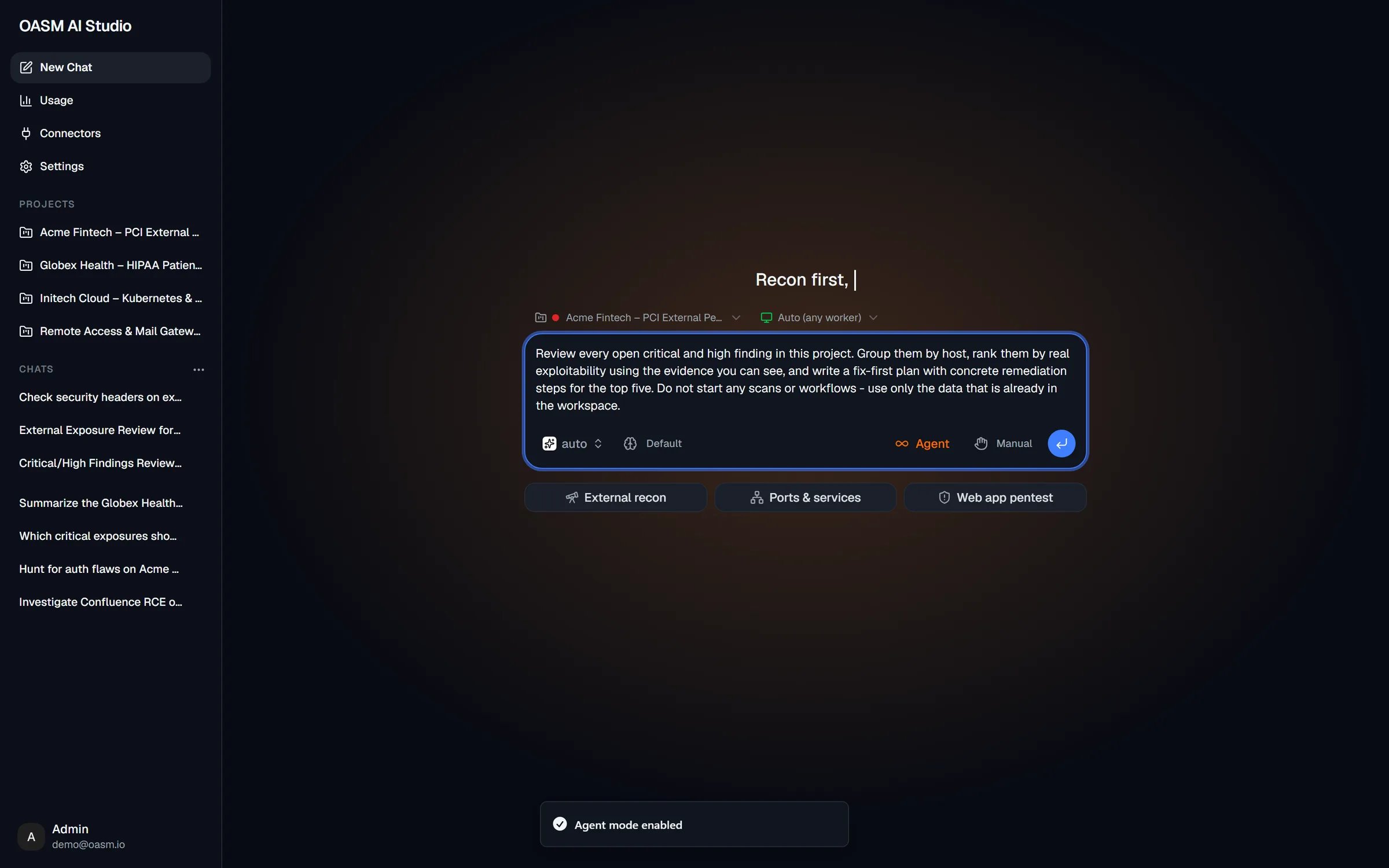
A new chat in Agent mode, scoped to a project, with the starter prompt groups below the composer
Ask and Agent at a glance
The Agent button in the composer switches a chat between the two modes. A new chat starts in Ask mode.
See Chat for the composer, modes, starter prompts and conversations.
How an agent task flows
1
You ask
You describe the outcome you want in Agent mode, optionally in a project chat so the agent stays inside that project. In Agent mode no tool runs until a plan is approved, so use Ask mode for a quick lookup.
2
The agent plans
For anything larger, the agent writes a plan: an ordered list of outcomes. No work tool runs before the plan is approved.
3
You approve
The Run this plan? prompt replaces the composer. Approve it to run commands automatically or to approve each command, reject it, or tell the agent how to change it. See Plans and approvals.
4
Subagents do the work
The main agent dispatches subagents for the hands-on jobs, several at once when they are independent. Commands run on a worker, never on the OASM API host. Follow the run in the side panel.
5
You get the answer
The agent writes its answer in the chat. Findings it can back with evidence are recorded as proposals that wait for a reviewer under Pending review (AI) on the Vulnerabilities page; they do not count as findings until someone approves them.
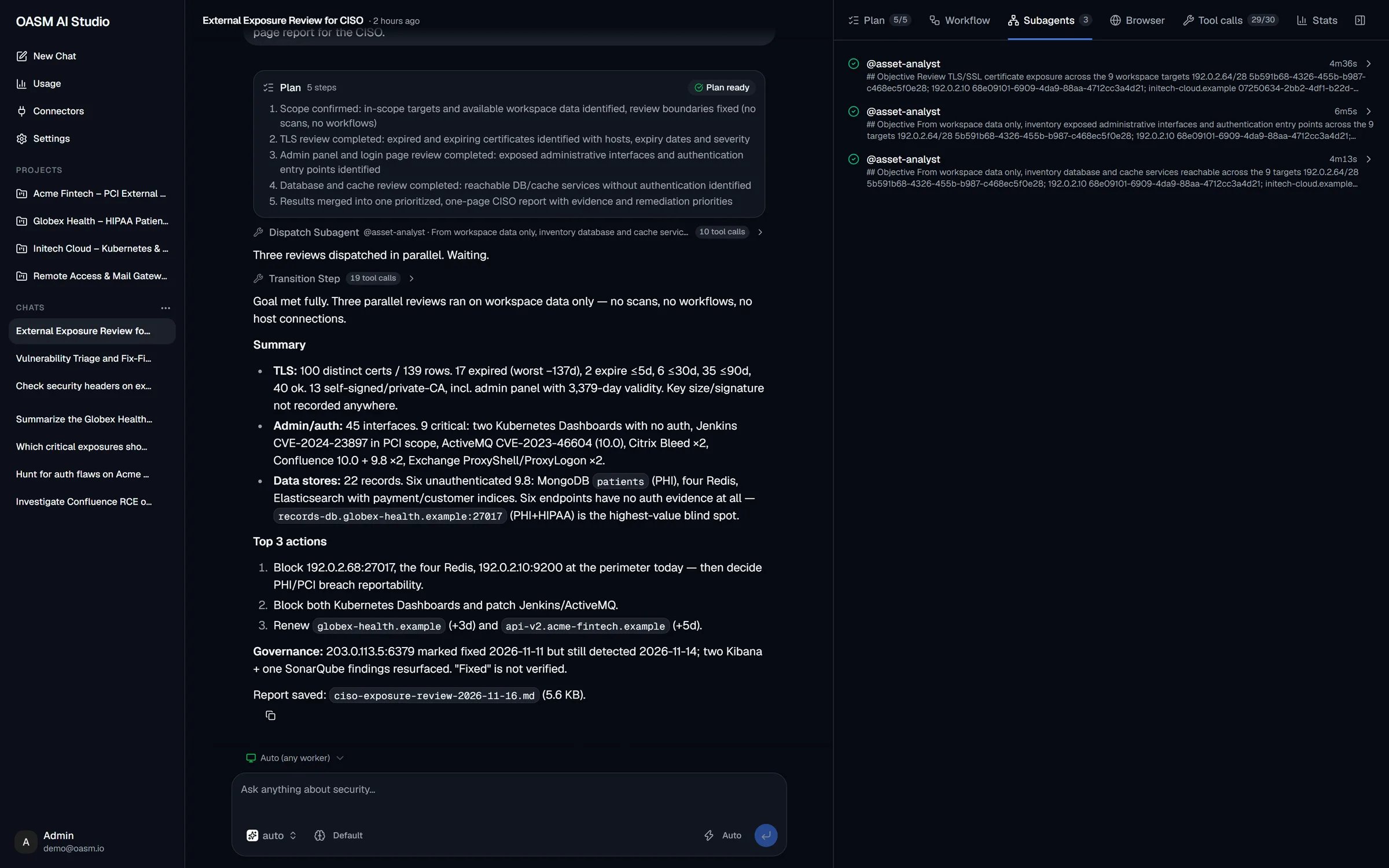
Three subagents dispatched in parallel, with the plan and the final answer
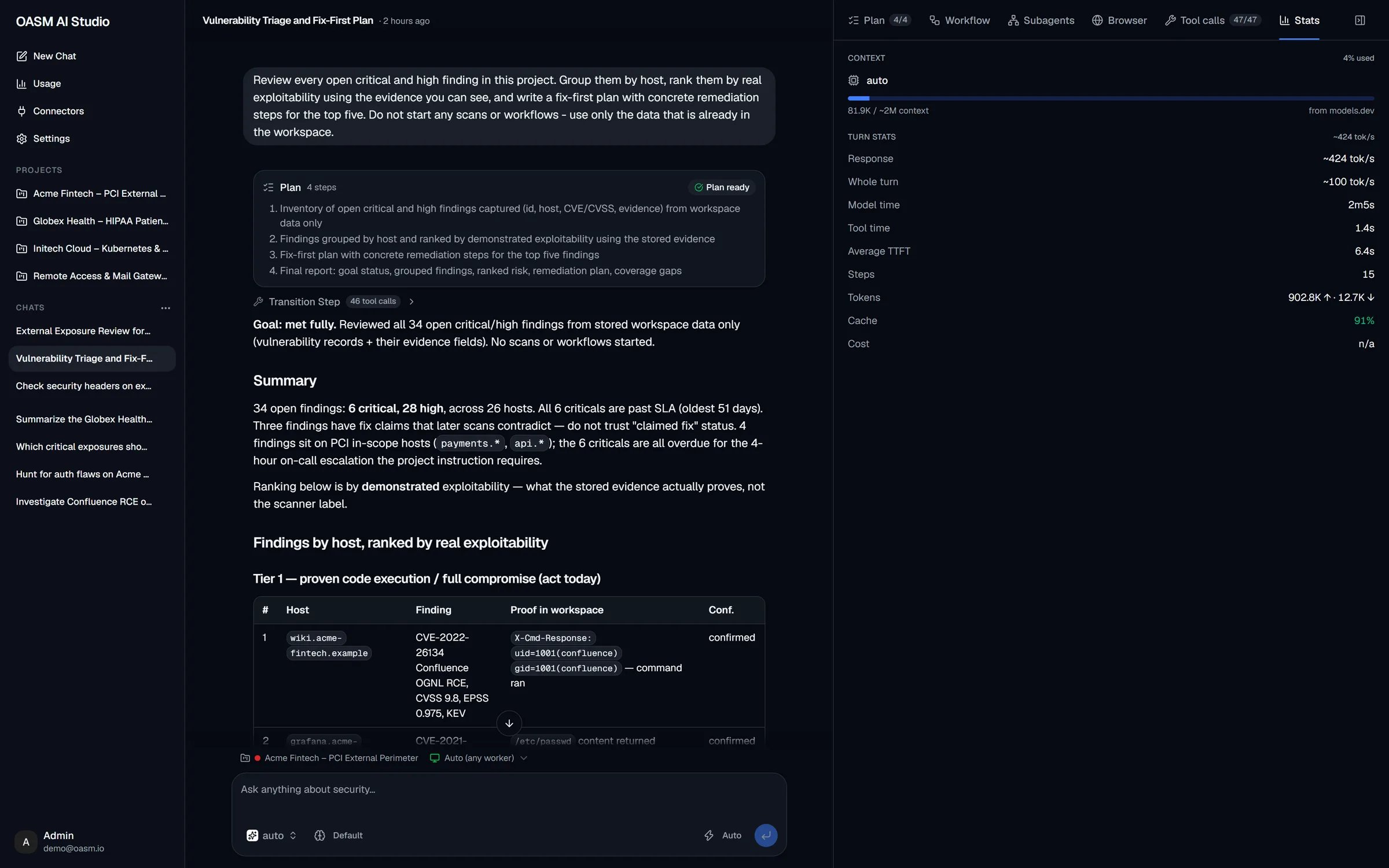
A finished answer, with the approved plan, grouped tool calls and turn stats
Get started
1
Connect a model
In AI Studio, click Settings, then Connect next to a provider, and enter your API key. Your first connection becomes your default model. See Connect a model.
2
Connect a worker for Agent mode
Ask mode works without a worker. Agent mode needs at least one online worker; if none is connected, the Agent button opens the connect-worker dialog. See Workers.
3
Ask your first question
Click New Chat, pick a starter prompt under Overview, Attack surface or Vulnerabilities, or type a question and press Enter.
4
Run your first agent task
Click Agent, leave the worker on Auto (any worker), and keep the approval mode on Manual. Describe the task, review the plan in Run this plan?, then approve it and answer each command prompt.
Key concepts
Permissions
Some settings need more than
agent.write: workspace skills can be changed only by the workspace owner, and a custom agent can be edited only by the member who created it. See Permissions.
Provider connections are per member, and connecting one needs
agent.write. A member who has only agent.read cannot connect a provider, so they cannot start chatting until someone grants agent.write or they get it through their permission group.vulnerability.write.
Security and data handling
AI Studio is part of your OASM deployment. Conversations, plans, settings and memories are stored in your OASM database.- What leaves your deployment. OASM sends each model request to the provider you connected. A request carries the conversation and the workspace data the agent read to answer it. Choose a provider whose data handling fits your policy, or point the custom provider at your own OpenAI-compatible endpoint.
- API keys. Provider and web search keys are encrypted with your workspace’s encryption key and only ever shown masked. Your provider key is never shared with other members.
- Commands run on workers. Agent-mode commands, tool connectors and the headless browser run on your workers, never on the OASM API host.
- Checks before every approval. In both approval modes, built-in safety checks run before the agent may call a tool:
- Shell commands and external MCP tool calls that match a built-in deny list are refused.
- Workspace tool rules, managed by the workspace owner through the
/api/agents/tool-rulesendpoints, can deny a call, allow it without a prompt, or force an approval prompt. - A scope gate keeps work on your targets. Tool connector targets and subagent targets outside the scope are refused. Hosts outside the scope that appear in a shell command trigger an approval prompt, and excluded hosts are always refused. In a project chat, the scope is the project’s scope rules; otherwise it is the workspace’s domain, IP and CIDR targets.
- You stay in control. No work tool runs until you approve the plan. An approval prompt left unanswered for five minutes counts as a rejection.
In this section
Connect a model
Connect a provider, pick a model and set your default
Chat
The composer, Ask and Agent modes, starter prompts and conversations
Plans and approvals
Review plans and approve commands before they run
Side panel
Plan, Workflow, Subagents, Browser, Tool calls and Stats
Project chats
Lock a chat to one project and give the agent project context
Connectors
The tools the agent can use, and external MCP servers
Usage
Tokens, cost, sessions and cache hit over time
Models
Default, small and subagent models, reasoning effort and approval mode
Agents
Built-in agents and your custom agents
Skills
System skills and workspace skills
Web Search
The search provider the agent uses to browse the web
Instruction
Standing instructions added to every conversation
Memory
Long-term memory across your conversations
MCP Server
Let external AI clients read your workspace over MCP