
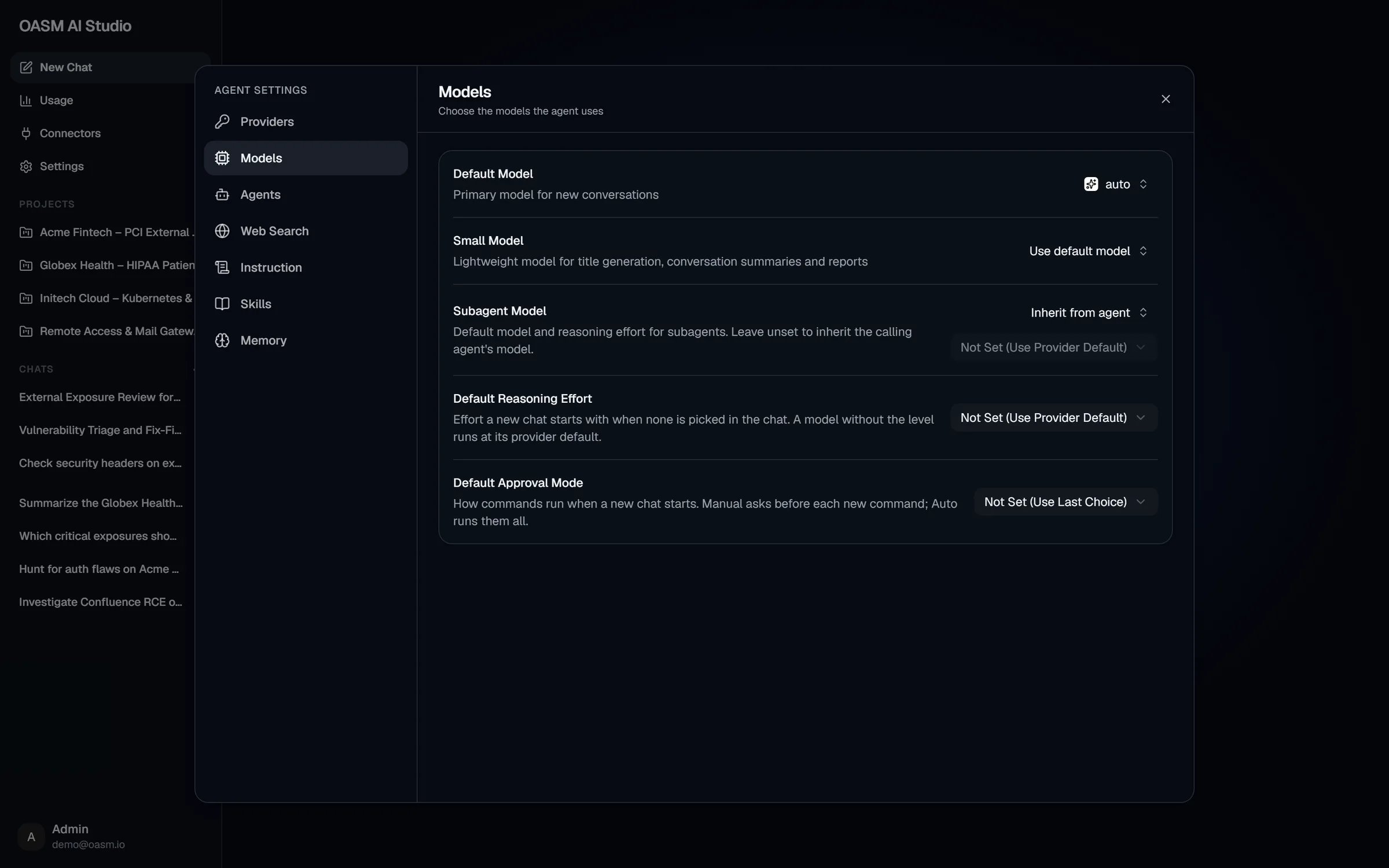
Settings → Models
Open the Models settings
1
Open the settings
In AI Studio, click Settings in the sidebar. The settings dialog opens on Providers.
2
Go to Models
Select Models under Agent settings. On a narrow screen, pick it from the section menu at the top of the dialog.
agent.write permission.
Settings at a glance
Each change is saved as soon as you pick it. A model change confirms with Models updated; a reasoning effort or approval mode change confirms with Defaults updated.
Pick a model
The Default Model, Small Model and Subagent Model rows share the same picker:1
Open the picker
Click the current value on the right of the row. The models of every connection load (Loading models…) and are grouped under the connection’s provider and name, for example
OpenAI · My Work Key.2
Find the model
Type in Search models… to filter by model ID or name.
3
Pick it
Click the model. A check mark shows the current choice. For Small Model and Subagent Model, the first entry (Use default model or Inherit from agent) clears the setting.
Default Model
The primary model for new conversations: the model a new chat runs on, and the model the composer’s picker starts on.- Options: any model of any connected provider.
- Default: your first connection becomes the default when you connect it. If no default is set, or the default connection was disconnected, the oldest remaining connection is used with its own model, and the row reads Not set (uses the first connection).
- Also used by: AI analysis of a vulnerability and AI tag suggestions on services.
Small Model
A lightweight model intended for title generation, conversation summaries and reports.- Options: Use default model, or any model of your connections.
- Default: Use default model.
In the current release the setting is saved but not yet applied: titles and conversation summaries are generated with the conversation’s own model.
Subagent Model
The model, and optionally the reasoning effort, that subagents run with.- Options: Inherit from agent, or any model of your connections.
- Default: Inherit from agent: subagents run on the same connection as the conversation that dispatched them, with that connection’s model.
- The agent’s own Override Model, if the agent being dispatched has one (see Agents).
- The Subagent Model set here.
- The conversation’s connection and its model.
- Your Default Model.
Subagent reasoning effort
The second control in the row sets the reasoning effort for the Subagent Model: Not Set (Use Provider Default), Low, Medium or High. It is disabled while the row is on Inherit from agent.- Picking a different subagent model keeps the effort you set.
- When the effort is not set, subagents use your Default Reasoning Effort, then the provider default.
- If the Subagent Model is also the chat model of its connection and you picked an effort for it in the composer, the composer’s effort applies.
Default Reasoning Effort
The effort a new chat starts with when you leave the composer’s effort picker on Default. It also applies wherever no other effort is set, such as subagents without their own effort.- Options: Not Set (Use Provider Default), None, Minimal, Low, Medium, High, Extra high, Max.
- Default: Not Set (Use Provider Default): the model runs at its provider’s default effort.
Default Approval Mode
How commands run when a new chat starts. Manual asks before each new command; Auto runs them all. See Plans and approvals.- Options: Not Set (Use Last Choice), Manual, Auto.
- Default: Not Set (Use Last Choice): a new chat starts with the approval mode you last chose in the composer in this browser, or Manual if you never chose one.
Change a setting
1
Open Settings → Models
In AI Studio, click Settings, then Models.
2
Pick the new value
Click the control on the right of the row and pick a model, effort or mode.
3
Check the confirmation
Models updated or Defaults updated confirms the save. The new value applies to the next chat you start, and the next subagent dispatched.
Related
Connect a model
Connect providers and switch model and effort in a chat
Agents
Give a custom agent its own override model
Plans and approvals
How Manual and Auto approval work
Usage
See the tokens and cost of each model