
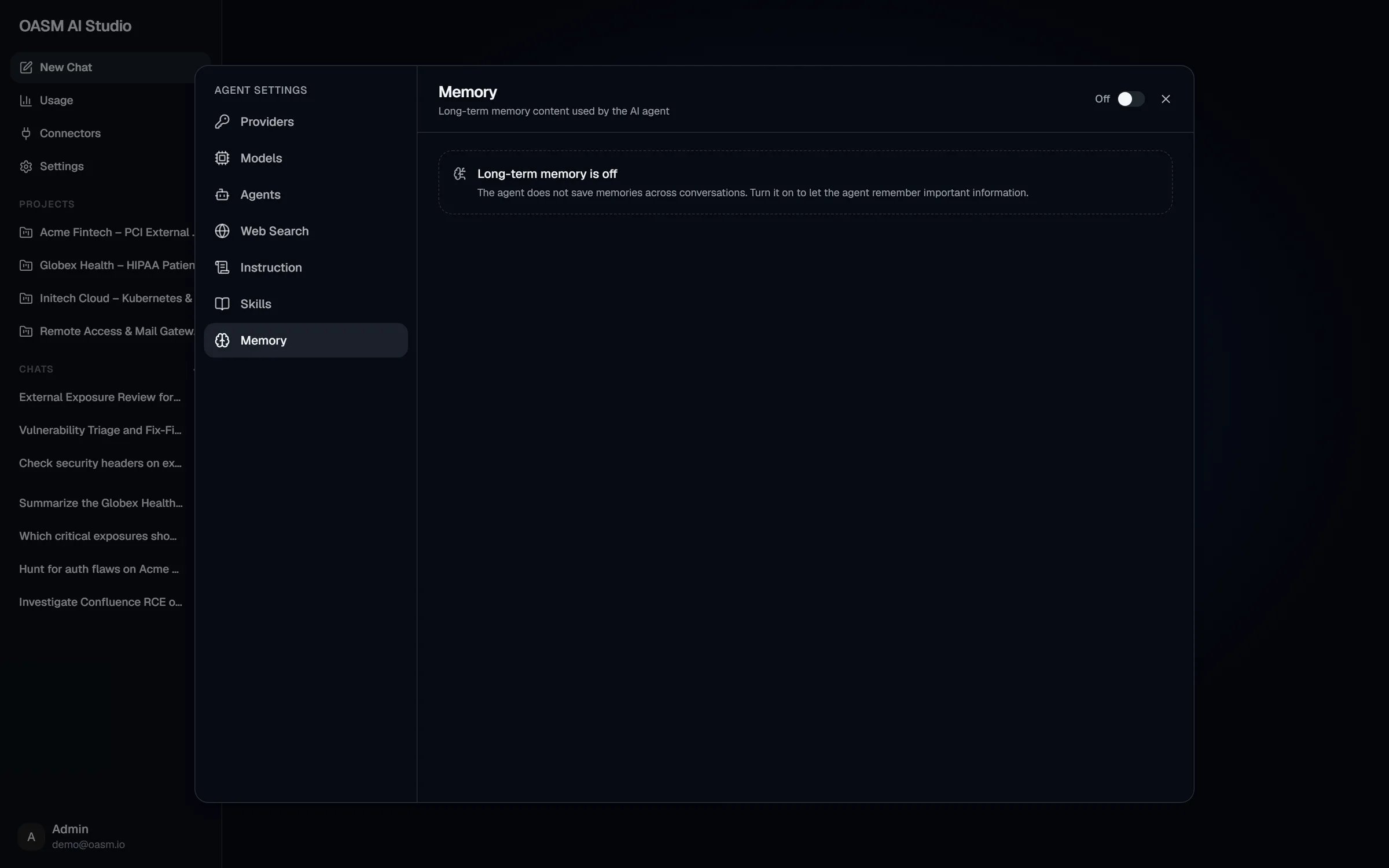
Settings → Memory while long-term memory is off
Whose memory it is
Memory is per member, per workspace. The agent only reads and writes your own memories in the current workspace; other members cannot see them, and your memories in one workspace are not used in another. Only the main agent uses long-term memory. Subagents never read or write it; within a conversation they share findings through short-term memory and the workflow notebook instead (see Side panel).Turn memory on
1
Open Memory
In AI Studio, open Settings → Memory.
2
Switch it on
Click the switch in the header so it reads On. The console confirms with “Long-term memory turned on”.
3
Keep chatting
From your next message on, the agent can save memories and sees the ones already saved. Saved memories appear in this section.
agent.write permission.
What the switch does
What gets remembered
There is no form to add memories: the agent decides what to save while it works. It is told to keep knowledge that is true about the workspace beyond the current conversation, one fact or topic per memory, for example:- the technology stack, authentication model or WAF behavior of a target
- what has already been tested, and what was found
- known vulnerabilities and organizational policies that affect how to test
Review and delete memories
With memory on, the section lists your memories, newest first. Each entry shows its content (long entries are cut to three lines with Show more / Show less) and when it was last updated. The list shows your 10 most recently saved memories; ask the agent to list them all.1
Find the memory
Make sure memory is On, then find the entry in Settings → Memory.
2
Delete it
Click the trash icon on the entry, then confirm Delete in the Delete memory dialog. Deleting cannot be undone.
See Permissions.
Related
Instruction
Standing instructions you write yourself
Chat
Start a conversation with the agent