
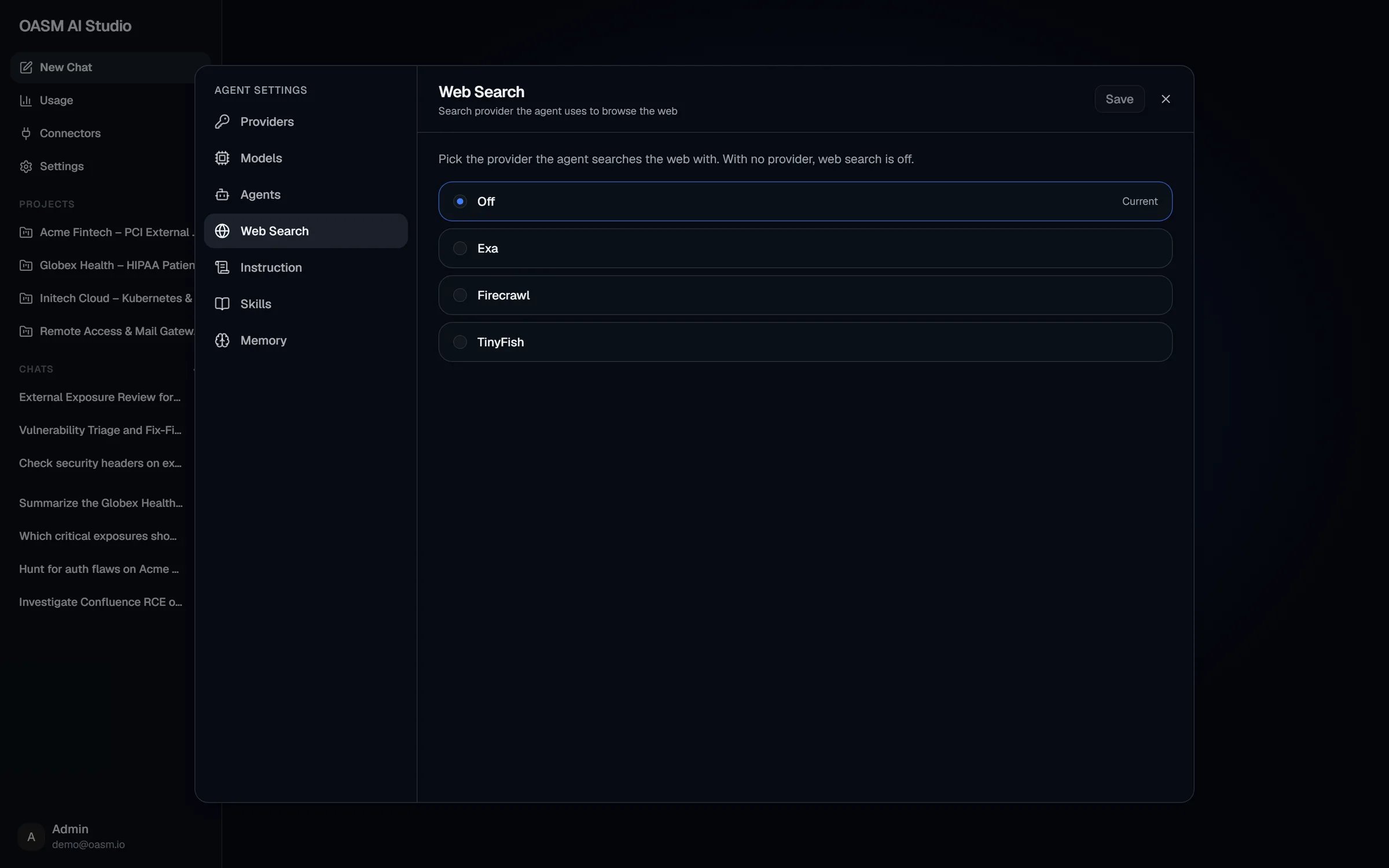
Settings → Web Search with no provider set
Providers
Each provider takes only an API key; there are no other fields. The option you saved is marked In use (or Current for Off).
Choose a provider
1
Open Web Search
In AI Studio, open Settings → Web Search.
2
Pick a provider
Select Exa, Firecrawl or TinyFish. A <Provider> API Key field appears below the options.
3
Enter the API key
Paste the key from your account with that provider. The field is required (marked
*) for any provider that is not the one in use. For the provider already in use, the field shows the saved key masked; leave it blank to keep it, or paste a new key to replace it.4
Save
Click Save in the header. The console confirms with “Web search updated”. Discard drops unsaved changes.
Turn web search off
Select Off and click Save. The console confirms with “Web search turned off”.Only one provider is stored. Switching to another provider, or to Off, deletes the previous provider’s key, so you need to enter it again if you switch back.
How the key is stored
- The setting is personal: it applies to your own chats in the current workspace. Other members set their own.
- The API key is encrypted at rest with the workspace’s encryption key and is never shown again in full. The console only shows a masked value ending in the key’s last four characters.
- Changing the setting requires the
agent.writepermission. See Permissions.
Related
Chat
Ask mode, Agent mode and what the agent can look up
Connectors
The tools the agent can use in this workspace